I’m glad my instructions helped you access your RUT901 via the RMS VPN IP!
Regarding your question, when creating routes in the VPN hub, if you add devices manually, you should use the IP addresses they have on your RUT901 LAN (192.168.0.X). Similarly, when using Auto Scan, you will see equipment connected to your RUT901 with their LAN (192.168.0.X) IP addresses.
Now, let’s proceed to the second step and attempt to add LAN devices automatically.
-
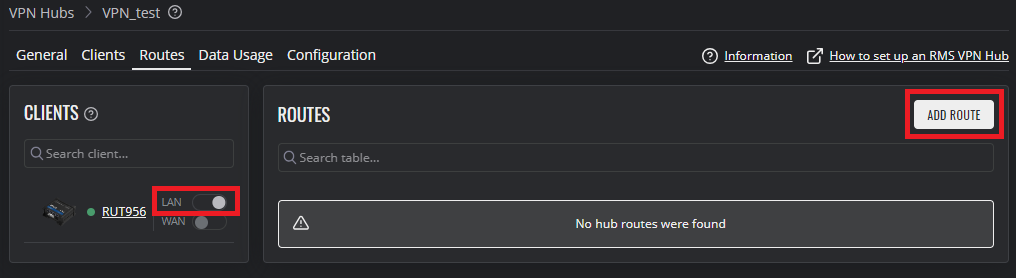
Navigate to the ‘Routes’ section of your created VPN hub. Enable ‘LAN’ next to RUT901 and click ‘Add route’.
-
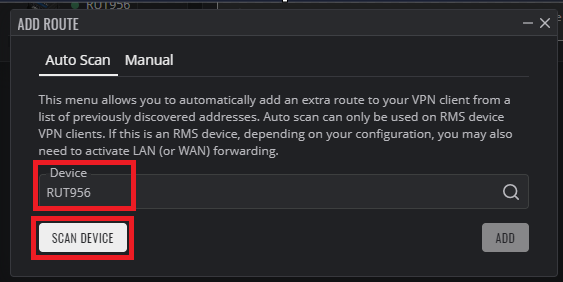
In the ‘Auto Scan’ section select your RUT901 and click ‘Scan device’.
-
After scanning, you should see a list of devices connected to your RUT901.
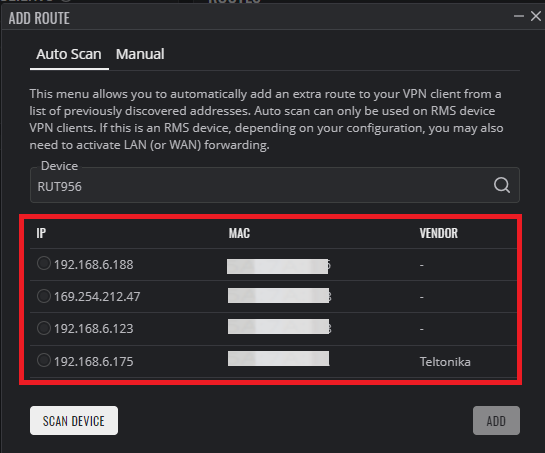
Please let me know if you see this list. If not, we can try adding devices manually.
Best Regards,