Hi,
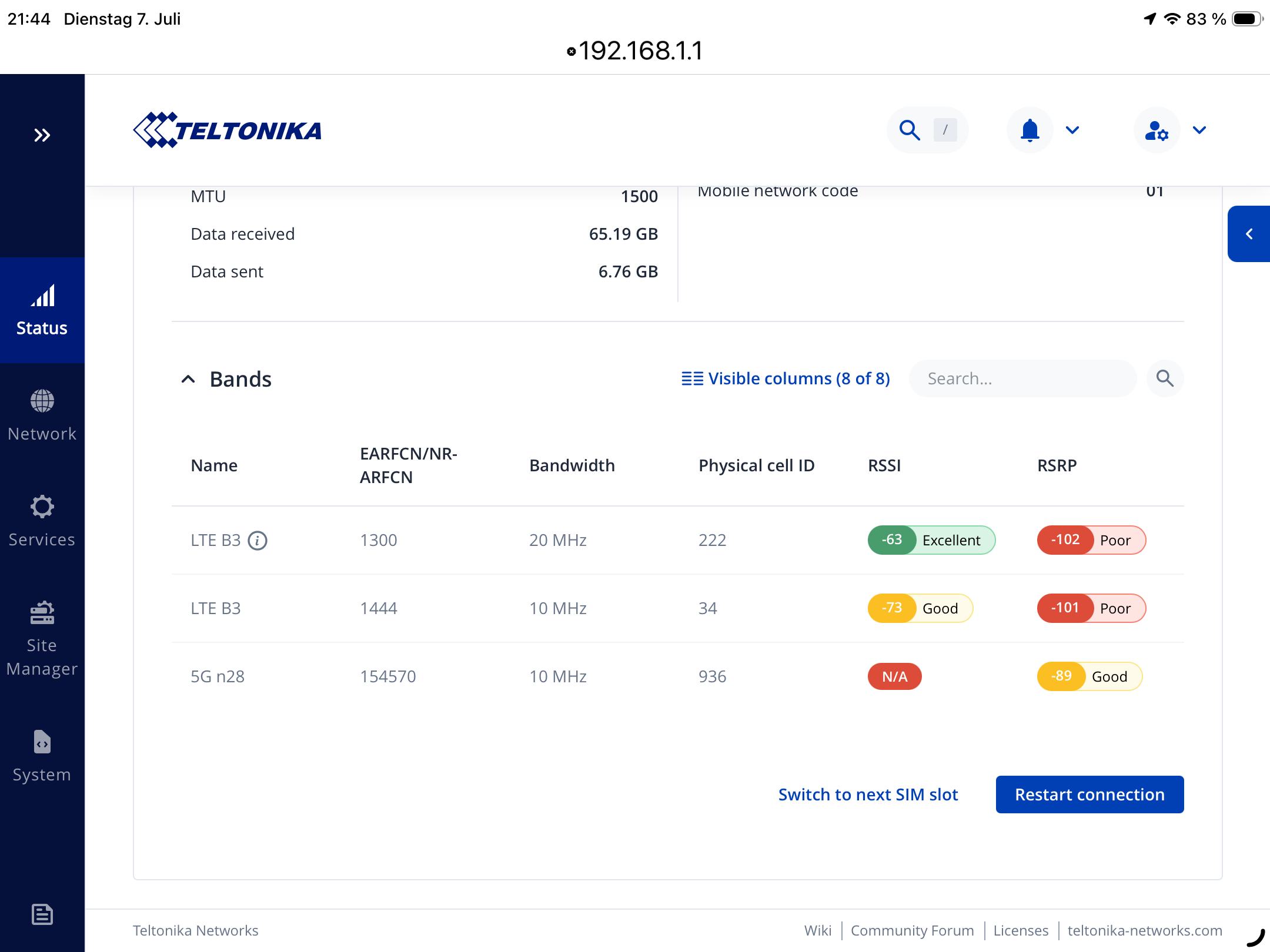
I have a RUTX50 and used to be able to connect to Telekom Deutschland 5G NSA, however for a week now this has been failing, falling back to 4G.
The issue does not occur on a different 5G modem (Zyxel NR2301) or phone with the same SIM, at the same location.
The issue does not occur with a Vodafone SIM either (successfully connects to 5G NSA). I assume Telekom made a network side change the modem in the RUTX50 can currently not handle.
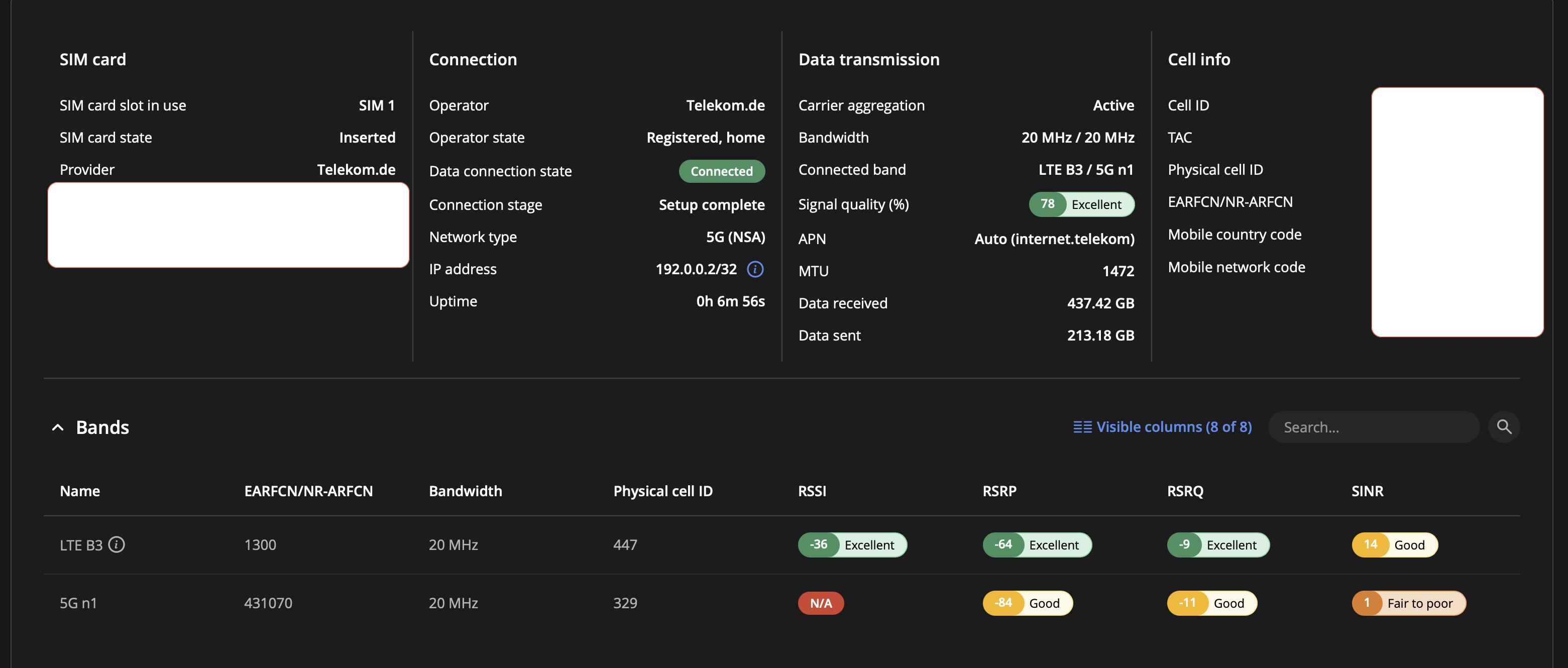
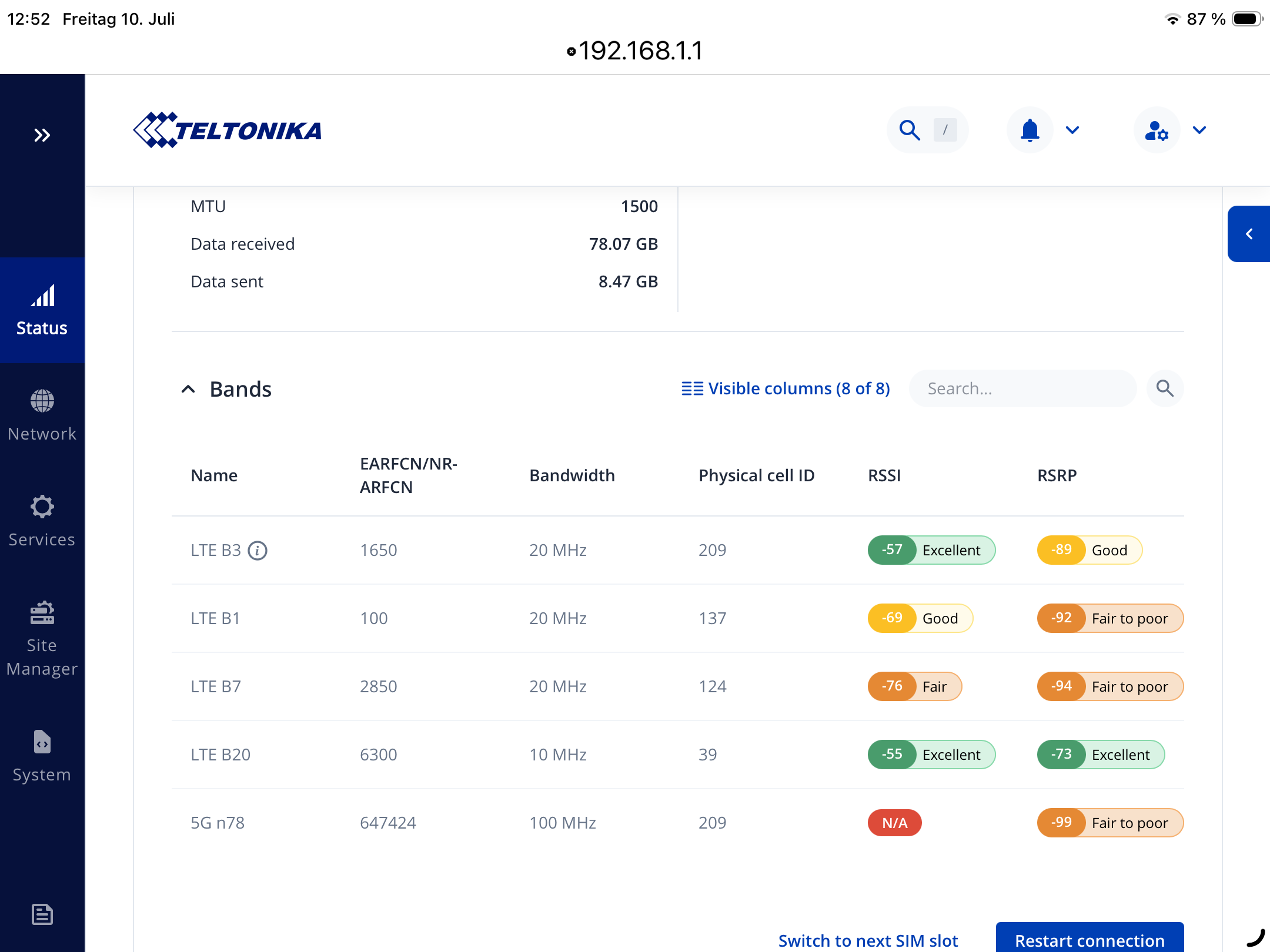
In RutOS the device briefly shows “5G (NSA); VoLTE” with the 5G LED on, but no NR band ever appears in the bands table and it drops back to LTE after a few seconds. EN-DC is being negotiated but the NR SgNB is not added. I’ve already tried: full modem reset (AT+QPRTPARA=3 + reboot), LTE band locks (B20 only, then B1/3/7/28), reseating all four antennas. No change.
Could you please let us know whether the suggestions provided by @heartless helped resolve the issue? If the problem persists, please let us know and we’ll be happy to continue assisting you.
Yes, deactivating VoLTE made the situation much butter. See my post above.
Just for my understanding:
Why does deactivating VoLTE improve the connection quality/speed?
What’s the benefit of having VoLTE in an internet router. I would expect that functionality in a mobile phone?
In addition to deactivate VoLTE I also tried to switch in WAN setting from IPv4/IPv6 to IPv4 only. That didn’t work. Seems that Telekom Deutschland doesn’t support that.
Thank you for your questions. I hope the following information provides some clarity and addresses your concerns.
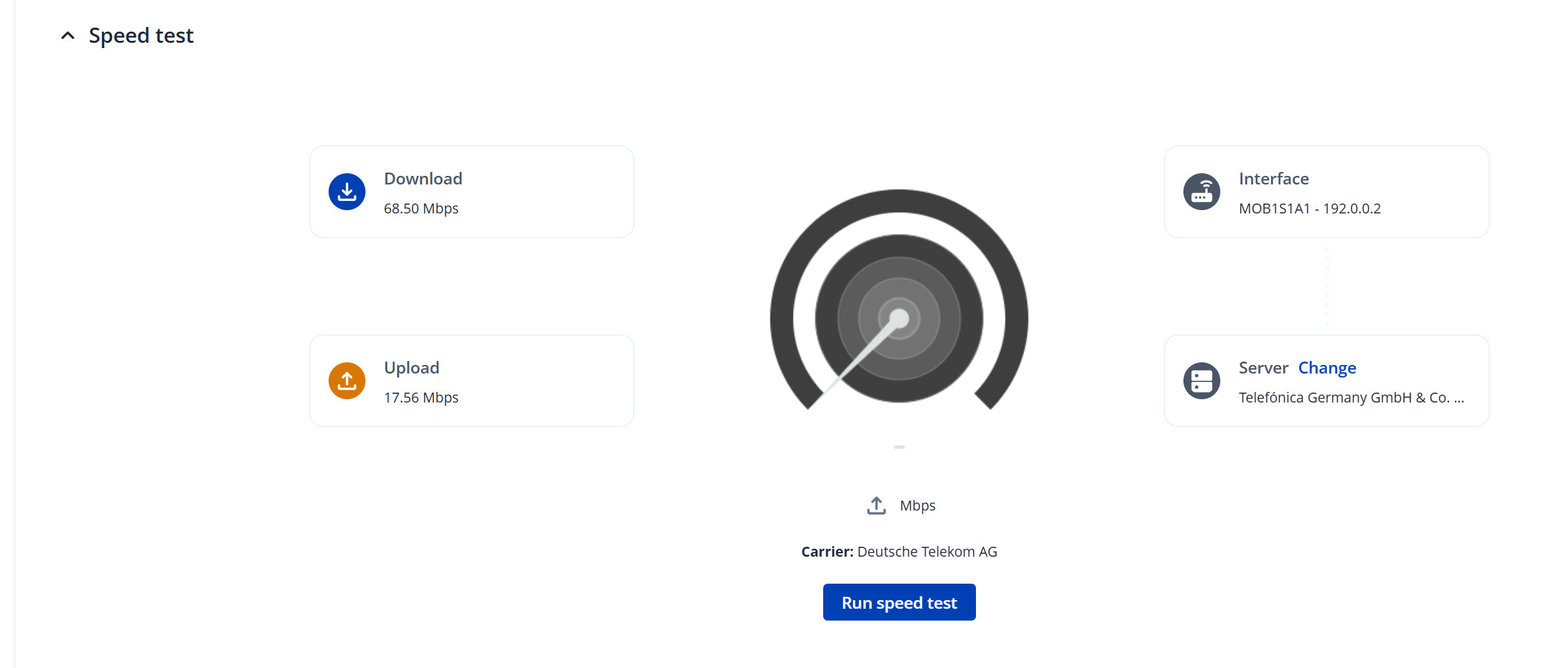
In 5G Non-Standalone (NSA) networks, your router connects to both a 4G and a 5G signal at the same time to deliver maximum speed. When VoLTE is enabled, the mobile network prioritizes voice call stability over raw internet speed. This causes a few things to happen behind the scenes:
The “Voice First” Priority: Mobile towers are programmed to ensure phone calls never drop. To safeguard this voice channel, the network will often limit the power going to the 5G data channel or temporarily disconnect the 5G leg entirely, dropping your router back to standard 4G.
Power Splitting: With VoLTE active, the router has to split its transmitting power between maintaining a stable voice standby line and downloading data.
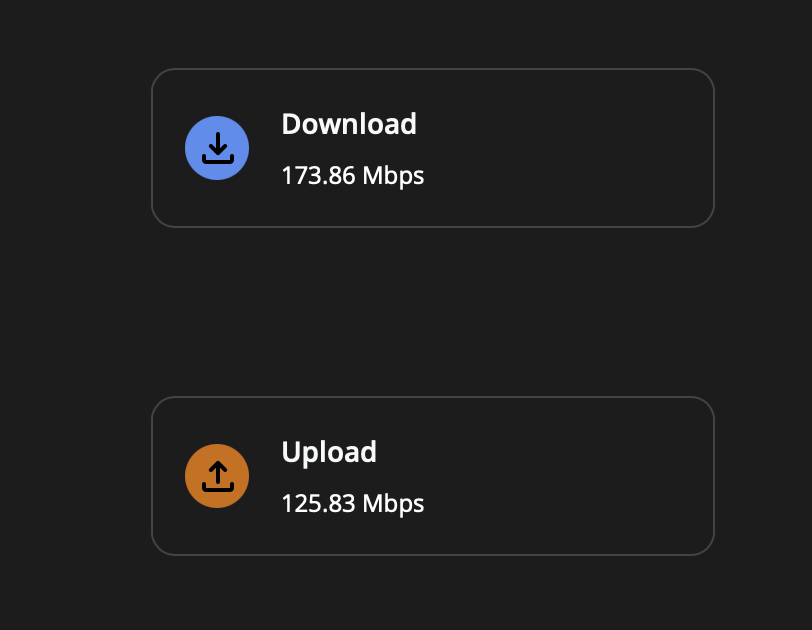
Disabling VoLTE tells the network that this device is strictly for data. This allows the router to fully lock onto the 5G signal and utilize maximum bandwidth without any “voice-safety” restrictions.
While VoLTE is native to smartphones, having it in a cellular router is highly beneficial for specific home, business, and industrial setups. It provides two main advantages:
Landline Replacement: Many cellular routers come equipped with a standard telephone port (RJ11). By enabling VoLTE, you can plug a traditional analog desk phone or cordless phone system directly into the router. This allows you to make and receive crystal-clear voice calls using the router’s SIM card - completely replacing the need for a traditional landline.
Business Continuity & Emergency Use: For remote offices, construction sites, or retail stores, it offers an all-in-one solution. If the main internet goes down, the router provides both backup internet and a backup business phone line over the cellular network.
If you only use your router for internet data and do not have a physical telephone plugged into it, VoLTE can be safely turned off to maximize your data speeds.
In case you have any additional questions, please don’t hesitate to let me know!
Based on the information shown, the RSRP values indicate a weak cellular signal, which can result in reduced performance, including lower data speeds and intermittent connection drops.
To improve the signal quality, I recommend checking the following:
Try relocating the device to an area with better cellular coverage.
Ensure that the mobile antennas are securely connected.
If the device is installed inside a metal enclosure, be aware that this can significantly attenuate the cellular signal.
For more information on mobile signal quality and the recommended signal strength values, please refer to the following wiki article:
If the antenna installation and device placement appear to be correct, you can also try manually selecting the most suitable frequency band. To do so, navigate to Network → Mobile → Connection, change the Band selection mode to Manual, and test different bands to determine which provides the best signal quality and overall performance.
I hope this helps. If the issue persists, please let me know, and I’ll be happy to assist you further.