Hello,
has anybody setup RUT955 with Proton VPN and get it working ?
Thank you
Hello,
has anybody setup RUT955 with Proton VPN and get it working ?
Thank you
Greetings,
I hope this message finds you well.
Please note that Proton VPN is not officially supported on Teltonika devices, so I am unable to provide guidance on its setup. For your reference, you can find a list of officially supported VPN services along with configuration examples here:
Kind regards,
V.
Since ProtonVPN is using WireGuard, setting it up is no different than any other provider that uses WireGuard. Once you get your WireGuard instance connected to ProtonVPN servers, you are pretty much done. First, you need to obtain WireGuard configuration file from ProtonVPN website that has all the required information.
Sign in to Proton VPN using your Proton Account username and password at account.protonvpn.com, go to Downloads → WireGuard configuration, and download a WireGuard configuration file. Be sure to select Platform: Router.
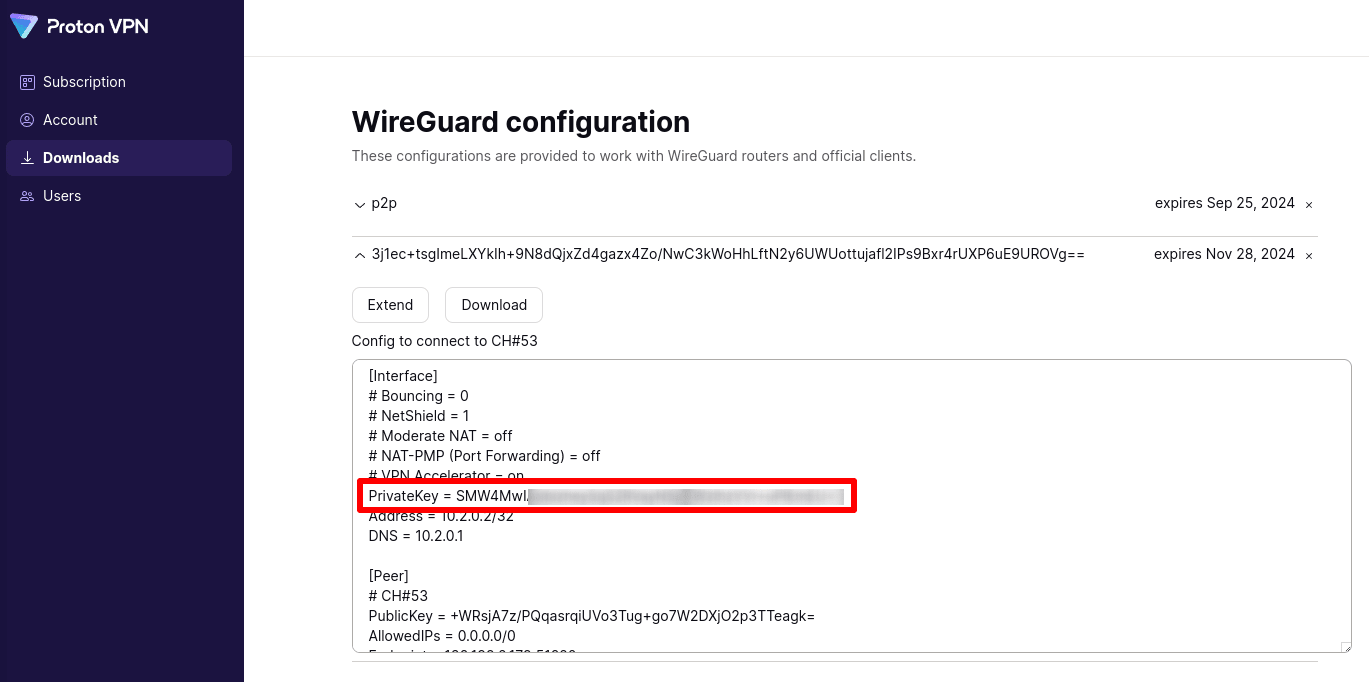
To configure RutOS, you’ll need the private key from this config file. To find it, go to Downloads → WireGuard configuration and select the WireGuard key you just created. Look for the line that says PrivateKey =.
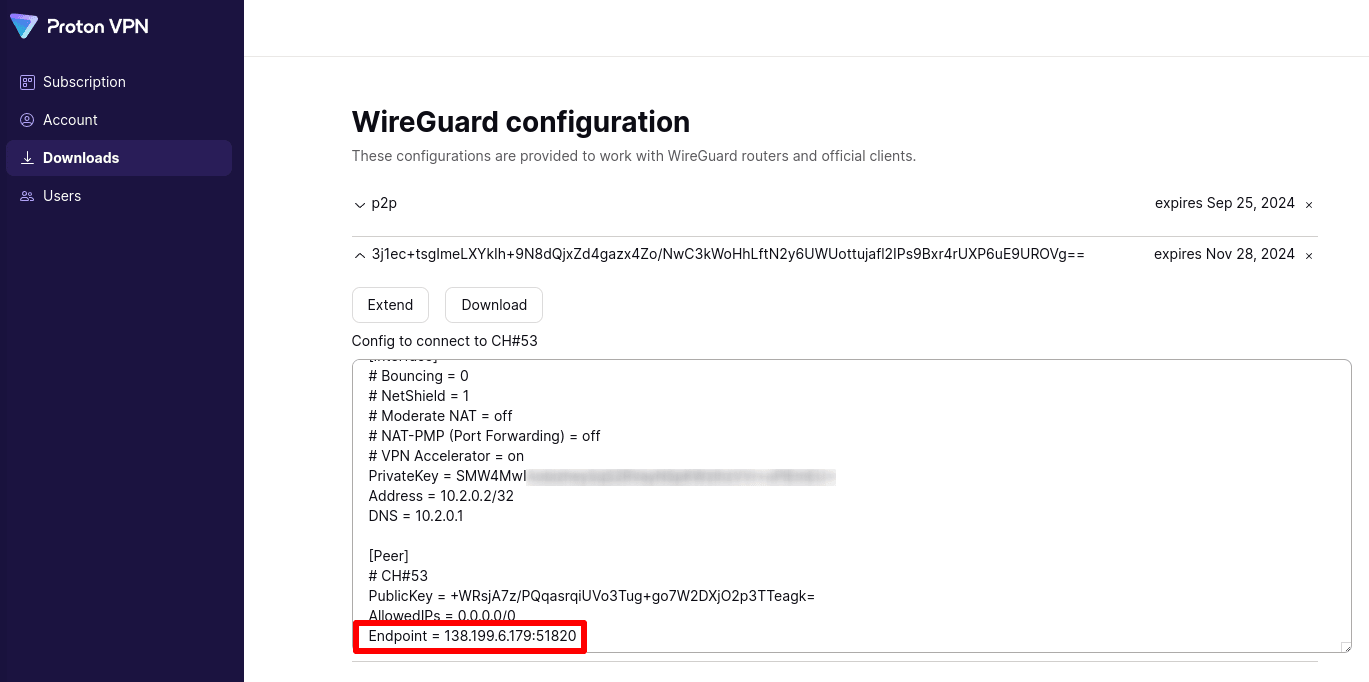
You’ll also need the Endpoint = IP address.
Keep in mind that this address will be different and it depends which WireGuard server you selected. Once you get all this information, log into your Teltonika device, and then go to Services / VPN / WireGuard and you will see Add new instance field. Give it a name. For example, “ProtonVPN” and then click on Add.
Click on enable switch in order to get this WireGuard instance enabled. Now you have several fields you need to fill in.
Private key * - Paste the private key from WireGuard configuration you downloaded.
Public key - This will be generated automatically.
IP address: 10.2.0.2/32
Click on advanced tab, and type 51820 as a listening port. Get back to General settings tab, scroll down, and you will see Add new peer instance. Click on add and fill in all required field.
Public key * - Paste the public key from WireGuard configuration you downloaded.
Endpoint host - Type the IP address from the WireGuard configuration you downloaded.
Allowed IPs: 0.0.0.0/0
Description: Any name. For example “ProtonCH”.
Now click on Advanced settings tab, and chose “Any” as tunnel source.
Endpoint port: 51820
Persistent keep alive: 25
Click on Save and apply, and WireGuard instance should be connected now. To check it, log into your device via SSH and type “wg show” without quotes, and you should see something like this
This indicates, that your WireGuard instance is now connected. Keep in mind that your traffic is still not going to go through this tunnel. You need to create the rules in order to route the traffic or specific clients through the VPN tunnel. For this, you can follow standard VPN instructions on teltonika website, as these instructions are unified and they apply for any VPN settings. The hardest part is connecting your WireGuard instance to the ProtonVPN server. Let me know how it went.
Thank you very much for the quick answer. Looks like another user has a solution
Nice. Thank you very much. I will try that and write you how that worked out. Have a nice day
Greetings, @maa1 ,
Apologies for the confusion in my previous reply.
heartless is correct – since Proton VPN uses WireGuard and our devices support WireGuard, it can be configured manually as described. While Proton VPN is not officially supported (we do not provide dedicated guides for it), the setup itself is possible using standard WireGuard configuration.
Best wishes,
V.