Just an observation that the upgrade to 0.7.18 was as smooth as any user could ask for here,
so I proceeded to read the 0.7.20 change notes ( I always get a bit twitchy when I read “OpenVPN” ! ) But decided to take a backup and proceed with the upgrade.
The upgrade went as normal but my net-to-net OpenVPN connection spent a LONG time stuck in the “Auth” state (I am using AES256-GCM and Whirlpool 512 as my hashing)
After maybe 15 minutes, the connection established, but it was not possible to route traffic across the connection
5 minutes later the connection dropped back to its “auth” state. before going to “connected” again, still no traffic flowed. this auth - connected - auth- connected loop persisted, but no traffic could be passed.
After approximately one hour, I started to see MODBUS events coming in and realised that the VPN had finally sorted itself out and was working normally again.
I have yet to try a reboot.
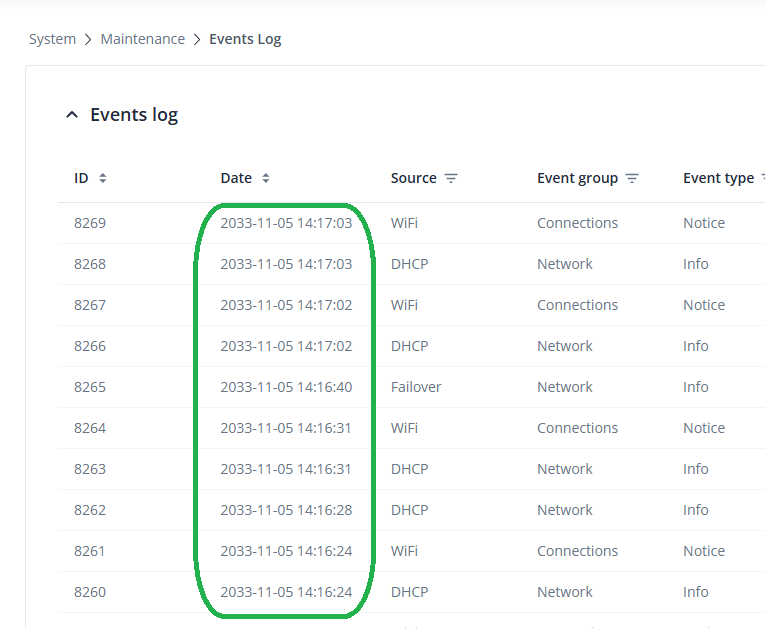
I looked in the logs and spotted the system date was well into the future ?
So if the system time had somehow got corrupted during the update / restart, that could explain the OpenVPN getting stuck in the auth loop as my certificates would have been well out of date!
It doesn’t explain however, why the GPS clock (GPS is plugged in) and NTP client didnt resolve the issue during startup ?
prior to the updates every event in the system log was correct, the year shift to 2033 remains a mystery.
Happy to share the event log CSV via email if it helps.
More so, I will have to ask you to try & reboot the OpenVPN service if possible, but do that through the CLI/SSH by entering /etc/init.d/openvpn restart - let me know if it still takes a while to get back up, and if so, we’ll continue our conversation in a different communication channel so I could collect the logs from your device to send to our R&D.
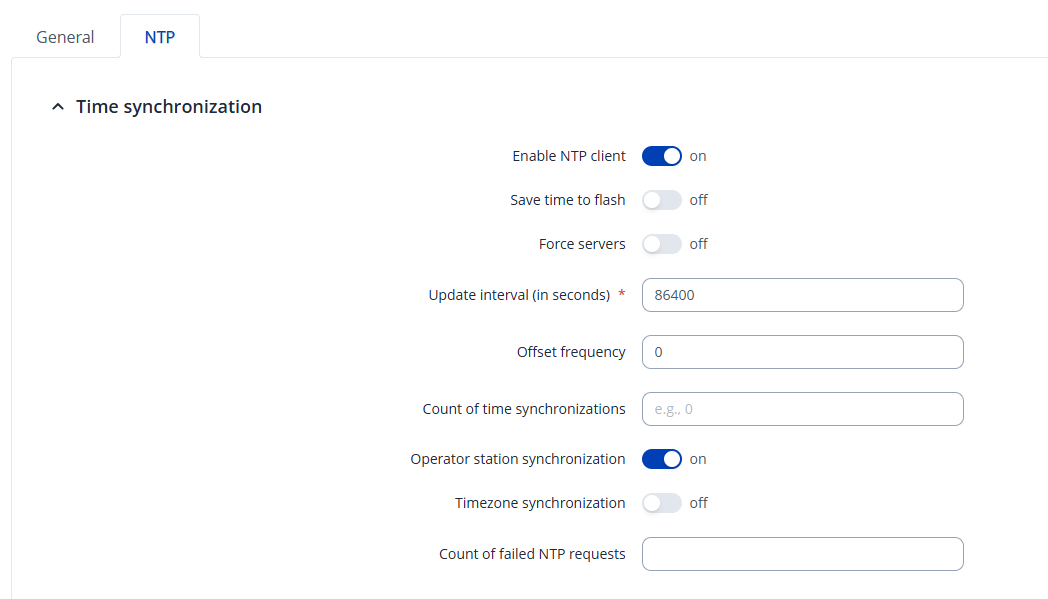
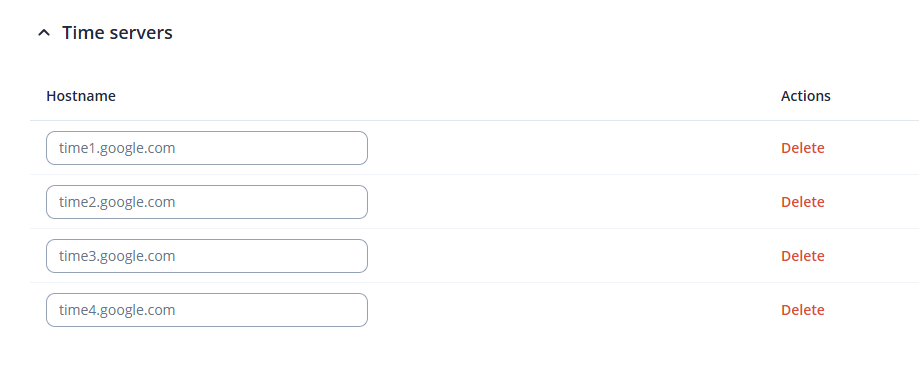
My NTP settings align with your screenshot except I have a much smaller interval value and I use different time servers - partially as I have my own GPS locked NTP server on site here.
I will restart the daemon shortly and let you know.
How do I manually flush the event log please ? as I have a whole heap of log entries for a future date now! ( I have downloaded the CSV in case its needed for debugging )
The entire log should be visible within the troubleshoot file that you’re able to generate under System → Maintenance → Troubleshoot → Download, of course, this file gets cleared out once the device has been rebooted, but if it hasn’t we should be okay.
Regarding sharing the file, let me know first what happens after the restart, and if the issue persists, I’ll send you a form to fill out so you can share the file privately (since it contains private information such as IP addresses, configurations, etc).
OK, so today the vehicle was outside my window so it was easier to test as I had one PC on the OpenVPN server side LAN and a second with Wi-Fi access to the RUTX11 LAN:
locally restarting the OpenVPN daemon to ICMP ping recovery X11 LAN to server LAN was about 1 minute 50 seconds
In the name of completeness I also bounced the connection at the server end (I expected it to be a little slower due to dead peer detection). But that took a mere 42 seconds.
So definitely not the 20+ minutes of the post upgrade reboot, but still a little slow in one direction.
I’ve tested this in my own local testing environment and got very similar results (Took ~35 seconds or so for the tunnel to get back up and running). I believe your results are pretty much expected.
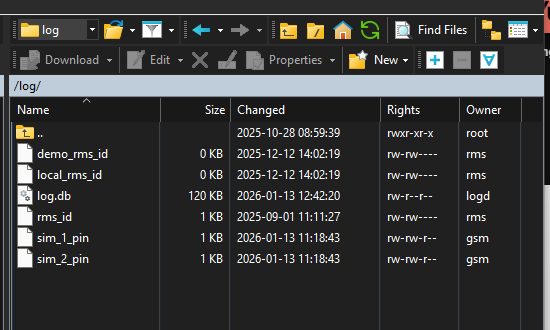
If you access your device via an app such as WinSCP or FileZilla and log in as the username root (password is the same as the device), and head to the /log folder and export the log.db file:
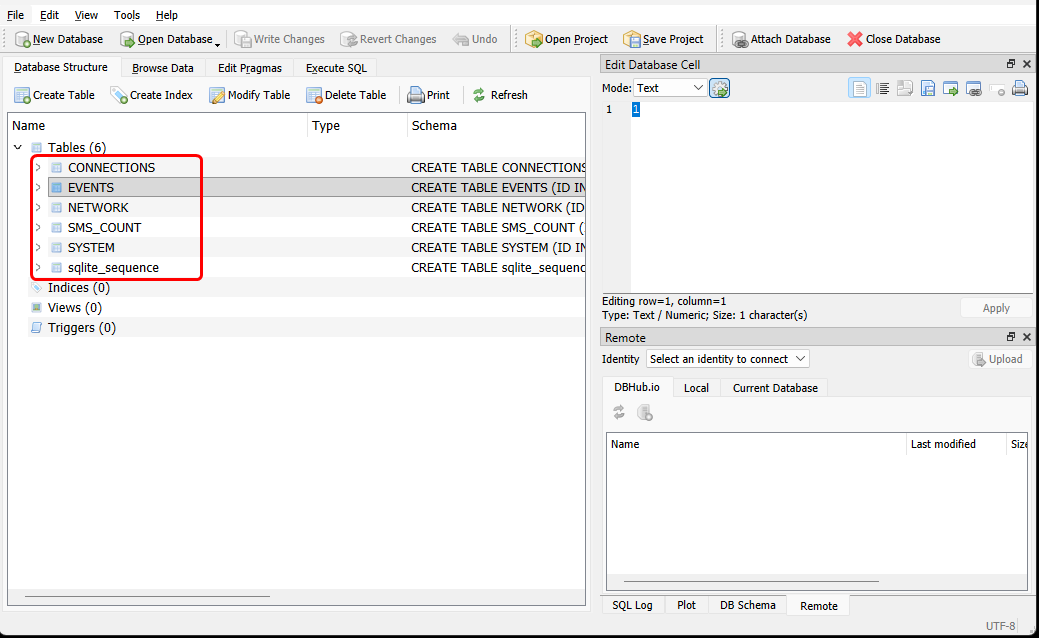
You can then export the file and open it with a database file viewer of your choice (I used SQLite). Once the file is open, you will see the following:
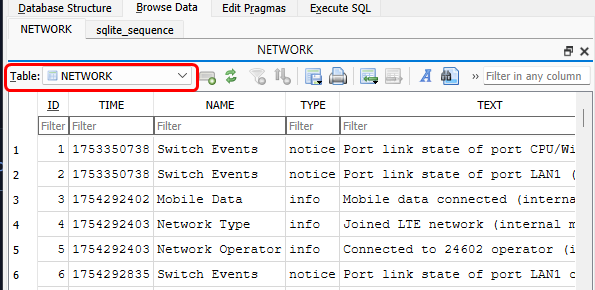
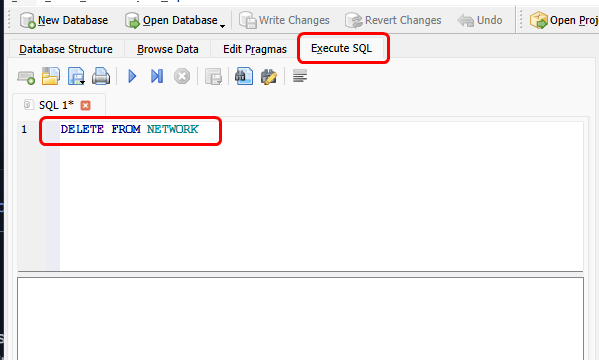
You will need to head to the Browse Data tab, and select the tables that you want to delete the data of, for events log, it stores all of these tables, so you may want to delete all of them. You can do so like this:
Of course, you may want to do the same for the others table too, so just rinse and repeat the process, just change the table name under the Execute SQL tab, as well as make sure to select the correct table.
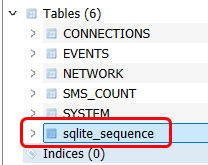
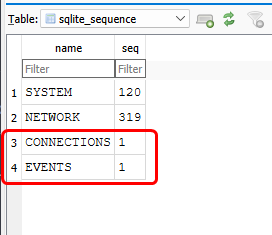
Finally, you’ll have to Modify the sqlite_sequence table:
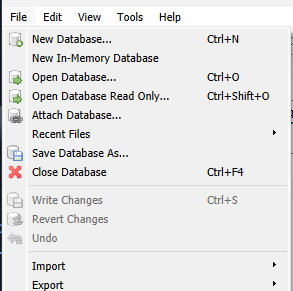
(For me it’s grayed out since I didn’t do any changes)
Lastly, upload the file to the same directory and overwrite it. Head to System → Maintenance → Events Log and hit Refresh, your logs should now be cleared!