I am using an RUTX10 router for remote access, which is connected to a PLC (10.10.10.9) and an HMI (10.10.10.160). I have set the RUTX10 LAN port IP address to 10.10.10.2 and configured routing for these two IPs. I have also set up the RMS Hub. While I am able to access the HMI via RMS Connect Remote AccessVNC, I am unable to ping either the HMI or the PLC from my laptop. I also noticed that in VPN hubs LAN turns itself off. I can ping the RUTX10 from my Laptop and I can ping PLC and HMI with RUTX10 itself.
Thank you for reaching out. I’ve reviewed your case and would like to summarise the situation and provide you with clear next steps.
Please work through the following in order:
Enable LAN Forwarding in RMS
Log in to RMS and go to RMS VPN → VPN Hubs.
Open your Hub and navigate to the Routes section.
Under the Clients tab, find your RUTX10 and ensure the LAN toggle is enabled. If it keeps turning off, save and immediately restart the Hub, then check again.
Add Routes to PLC and HMI
In the same Routes section, click Add Route.
Add a route for the LAN subnet of your devices. Since your PLC and HMI are on 10.10.10.x, you can add the network 10.10.10.0 with subnet 255.255.255.0 (/24) and assign it to your RUTX10 - this covers both devices in a single rule.
Restart the VPN Hub after saving the route. This is mandatory for the routes to be pushed to all VPN clients.
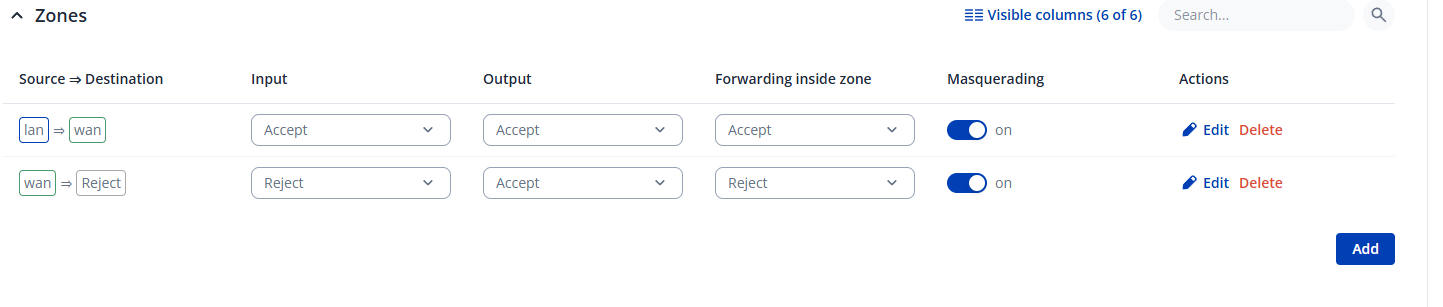
Modify Firewall Zones on the RUTX10
Log in to the RUTX10 WebUI and go to Network → Firewall → Zones.
Click Edit on the LAN zone.
Under Forwarding between zones, in the Allow forwarding to destination zones field, add the RMS VPN zone (it will appear as something like rms_xxxxxx: openvpn).
Click Save & Apply.
Enable Masquerading (From your screenshots, I can see that it is already enabled)
If the PLC or HMI does not have the RUTX10 (10.10.10.2) explicitly set as its default gateway, the return traffic will not know how to reach your laptop. To work around this:
In Network → Firewall → Zones, edit the LAN zone.
Enable the Masquerading option.
Save & Apply.
This setting causes the router to substitute its own LAN IP as the source address, ensuring return traffic is routed correctly even when the end device has no configured gateway.
Verify and Test
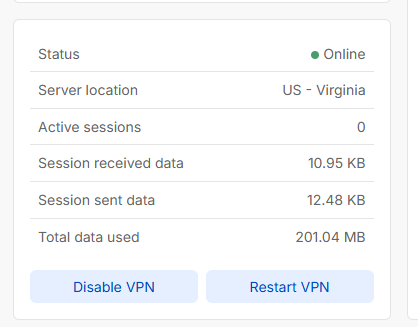
Confirm the Hub shows as connected and your RUTX10 appears as an active client.
From your laptop (connected to the VPN), try pinging 10.10.10.9 (PLC) and 10.10.10.160 (HMI).
If ping still fails, please share a screenshot of: (a) the Routes tab in RMS, (b) the Firewall Zones page on the RUTX10, and (c) any error messages.
Please don’t hesitate to reach out if you need assistance with any of the above steps.