Hi. As Teltonika support is only for customers who bought directly from Teltonika,
I am lost, as theirs local reseller support in CZ is terrible / none.
Maybe I’ll find some help here.
For our RV I decided for RUTC50 + PUCK 5 to achieve best connections and speed (2x2MIMO). However, I got suboptimal results.
Mobile connection is unpredictably unstable.
After few tests i was able to somehow isolate this problem:
1/ Parking RV 100m far from any source of possible interference (in open field), in good coverage area.
2/ Connection may be very poor, 90% packet loss and almost impossible to connect (from PC connected to LAN, eliminating possible wifi issues). Only 4G/LTE is connected. But still connected (not dead)
3/ “Restart connection” does not change anything
4/ Reboot whole router (no change of RV/antenna position) results in working connection, albeit at relative low speed. 5G is connected with “GOOD” SINR.
5/ At the same time, my mobile with internal antena only INSIDE the RV shows 250Mbit and higher and no problem connection.
Thank you for reaching out and for the screenshots.
To narrow down the issue, could you please provide more information on the following:
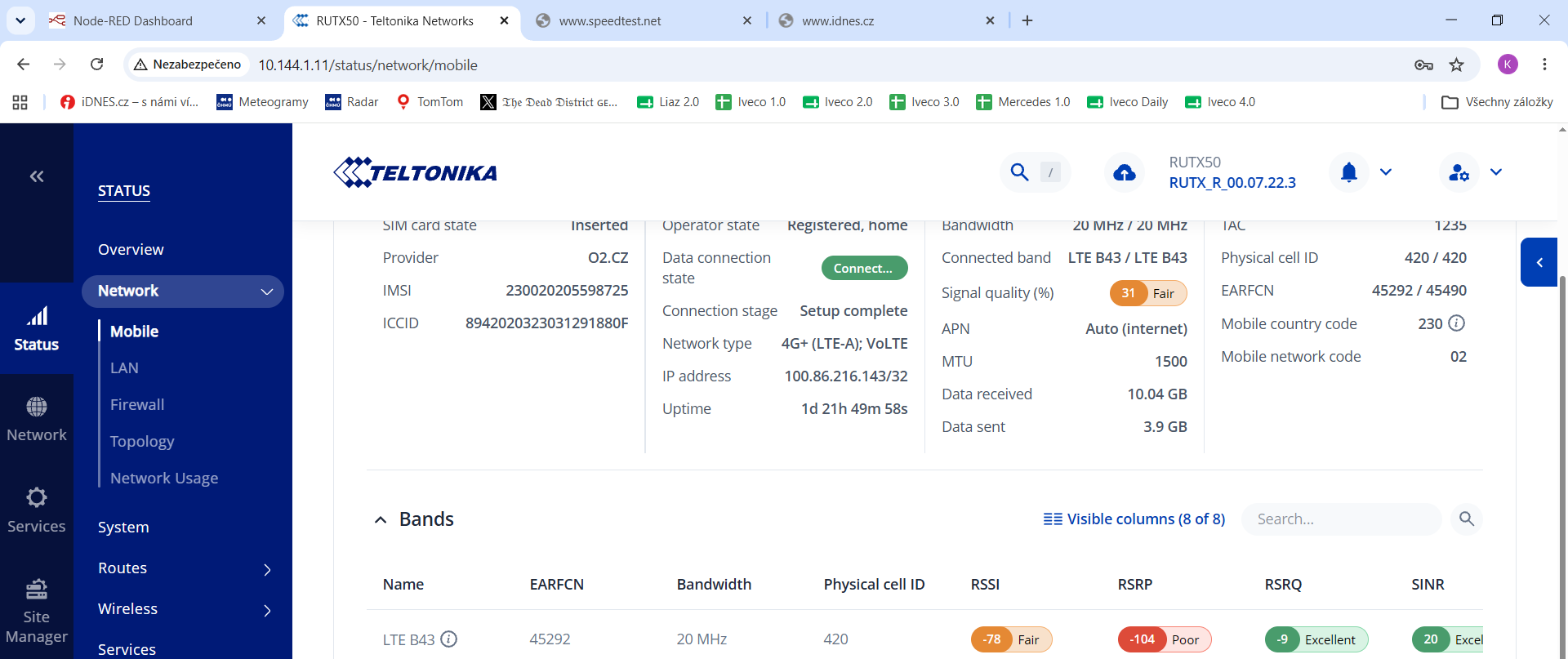
In your issue description, you mention using the RUTC50 router, but the screenshots show a RUTX50 on RUTX_R_00.07.22.3. Which router are you using? If it’s the RUTX50, please also try updating to the latest firmware.
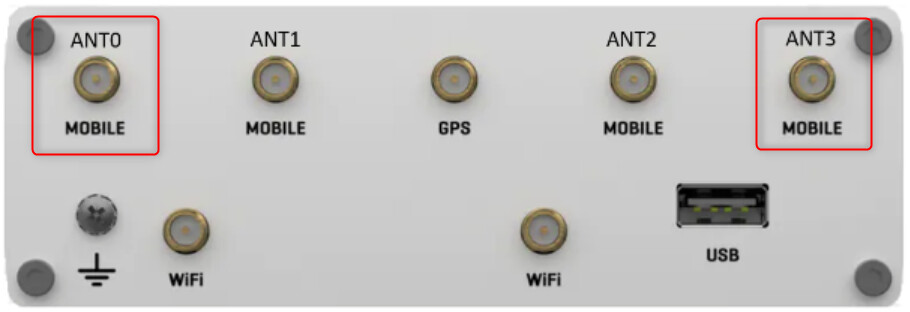
Which mobile SMA ports are the two PUCK 5 cables plugged into? For two antennas, they should be on ANT0 and ANT3. If they are on any other pair, or if one cable is loose, it can cause an unstable connection. Note also that the router is designed to use all four antennas for best 5G speeds. You can read more about antenna connections and band assignments here: 5G Mobile Antennas - Teltonika Networks Wiki
@Zobokar you should disable VoLTE if you are not using it. As @Martyna already said, you should upgrade your firmware to latest version. However, you are way behind, so updating to latest firmware from GUI may not solve your issue and it could potentially cause new issues. I would suggest you do this in this order:
Assuming you are using RUTX50. Download firmware from here.
Flash your device by using boot loader method. Keep in mind that this will reset your device to factory defaults. Follow these instructions on how to flash.
Once device is flashed, log in and go to Network / Mobile / Connection and set VoLTE to off.
This step is optional. If your provider is not using IPv6, disable that too. Go to Network / WAN / click edit pencil on your mobile connection section. New menu will show up, click on IPv6 settings, and set Delegate IPv6 prefixes to off.
Thank you all. I switched off IPv6 already, as this is common issue. Router is really RUTX50 (I missed it with newer RUTC50 we bought last time - which we have also issues with). Antenna has 4 mobile cables, so it is not PUCK 5 (as i have in my old files), due to change to then-new RUTX50 we upgraded it to MIMO-4-17 V2 (I guess). Anyway, I updated this RUTX50 appx 2x after installation from GUI. If it seems old now, this is another issue itself - we really cannot update once a month, and relying on automatic updates is unsafe by our industry standard. Router is on remote location and I was lucky enough to gain access via Zerotier or stop by for quick check, but bootloader update is not an option until I get there and have a day to spent, which will not happen until Xmas… We are kind stuck now. Anyway thanks for help.
When you bought your device, it probably came with very old firmware. Updating to latest firmware from GUI may not cause issues immediately, however, updating again and again may introduce issues later because device keeps existing configuration that doesnt match settings on latest firmware. You can literally flash same version of firmware from boot loader mode and it will solve your issues. Its important to keep in mind the fact that updating from GUI is not same as updating from boot loader mode.
That, unfortunately is not Teltonika problem. Today, AI has become so good at finding exploits (and fixing them), that every vendor has to be on their toes and keep their devices secure. That, of course, requires regular updates.
Boot loader option is the only option you have if you wish to fix this problem. Fortunately for all of us, it seems like Teltonika has improved firmware update process in recent firmware versions. So there is no need to fiddle with boot loader mode. If you flash latest firmware from boot loader mode now, chances are, you are safe to upgrade from GUI in the future. Just make sure you update regularly and dont stay behind too much, because if you do, then you need to go boot loader route yet again.
I see this as a kind of bad design. Settings should be verified when loaded into new firmware and rejected if there is an mismatch. Well, I’ll try to deal with it. As for updates - I do not want to be pushed into this position and simply disagree. When I have a hammer, I do not update it. Router should work with firmware at least when sold. The loop of mandatory updates to fix FW errors simply should not happen. >>Boot loader option is the only option you have if you wish to fix this problem. << Well, I’ll feel myself lucky if you are right. As a old troubleshooter I do not believe, but I’ll try. Thanks for help.
As i said in previous post, Teltonika is working on improving the update process, and you can clearly see it. The last few firmware updates worked flawlessly. There was no need for boot loader mode.
That is simply not possible for device of this caliber and complexity in this day and age. Times are different and you have to set your expectations right and adapt or simply not use Teltonika. There is no other way.
That is not possible. If you go and buy a brand new laptop that was sitting in the storage for 6 months, first thing you do when you unpack it, is update Windows/Linux or whatever OS it came with. Some laptops are getting their BIOS updates through Windows update. If you dont do all this, you are going to be severely compromised when it comes to security and/or stability.
First, you need to do all steps i described in my first post. If you did all that, then perform flashing from boot loader mode. If that doesnt help, tell us how this device is powered?
As I’m working on computers with Windows 10 and even Windows XP, I clearly see things differently. Updates do not save you, when yourselves are the biggest security hole. Updates are just an evil industry wants us to get accustomed to. Currently I even prohibited my only Win11 computer from updating, since an update breaks otherwise working configuration. Anyway, the device is powered from RV battery system directly from 24V over a fuse and a switch. All issues happen when the RV is idle, no interference there. Thanks for help, have a nice day.
Reflashing the firmware is a reasonable troubleshooting step when you have physical access to the router. Please back up the configuration beforehand, as bootloader recovery resets the device’s settings. Also, make sure you have the device’s default login password available, as you will need it to access the router after the reset.
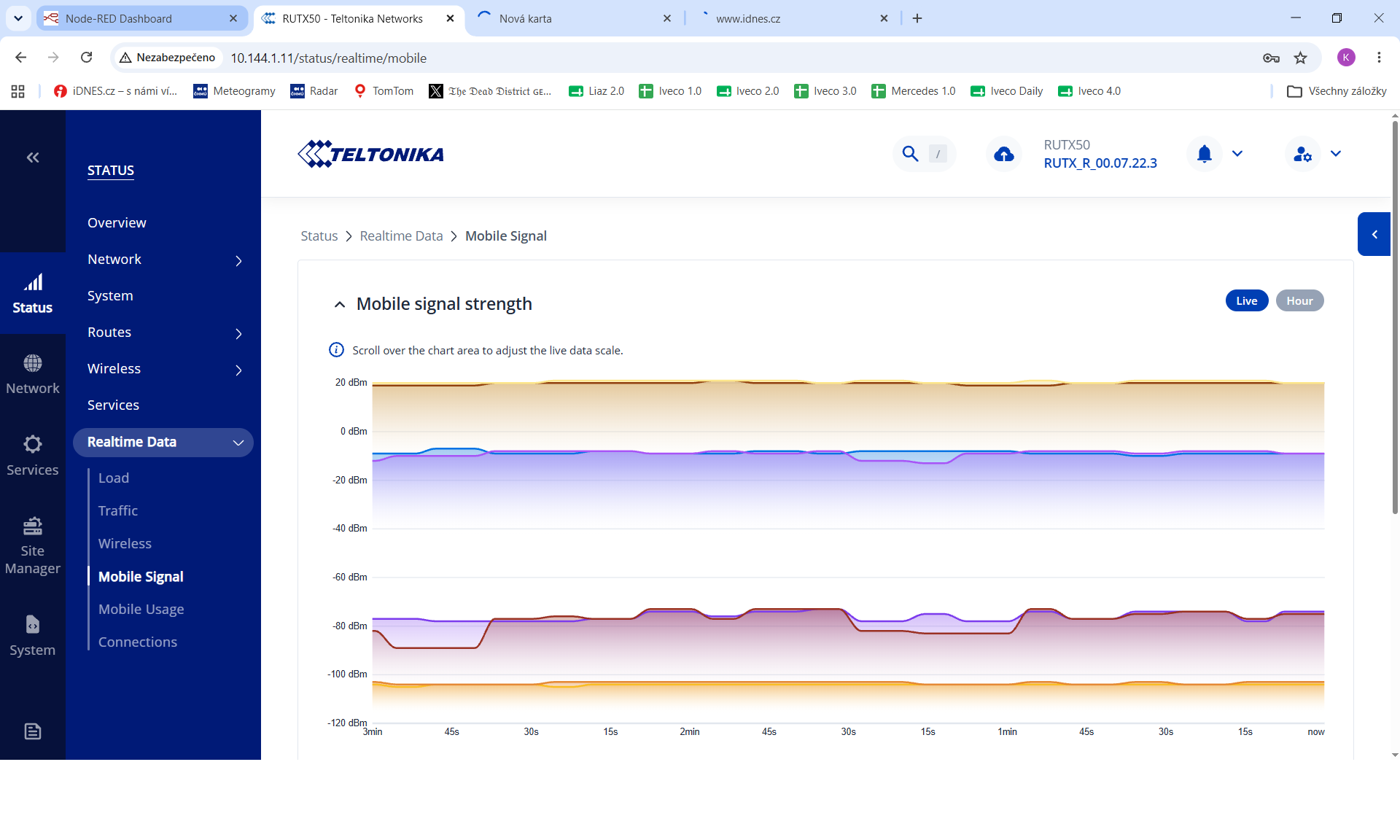
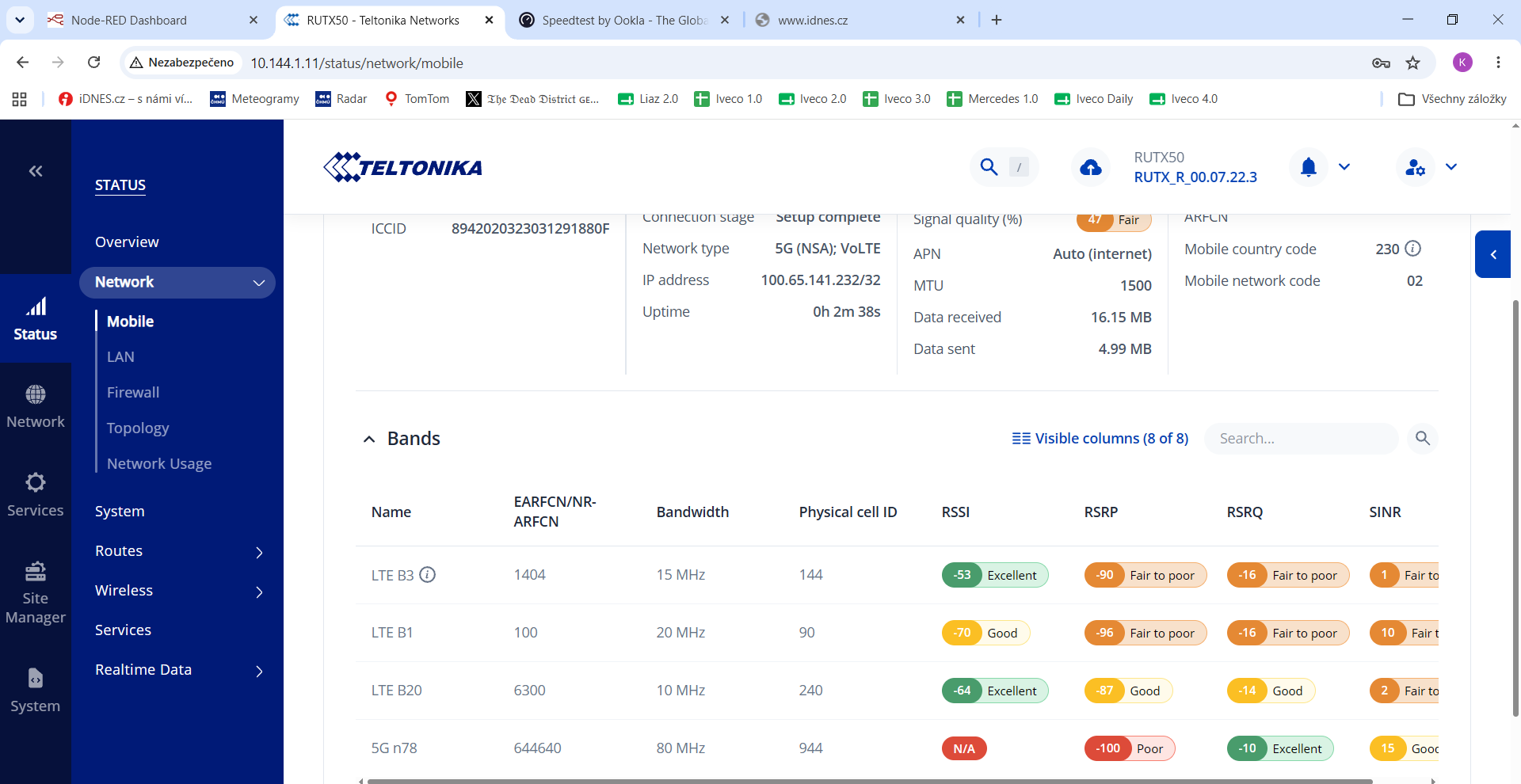
Alongside this, the mobile signal strength and quality should be evaluated. Insufficient signal strength or poor signal quality can result in low speeds, packet loss, and an unstable connection.
If possible, please test the router in a different location and compare the results. We also recommend testing with a different SIM card, preferably from another operator, and with the original mobile antennas connected to all four mobile antenna ports. These comparisons can help determine whether the issue relates to network coverage, the operator, or the external antenna installation. Please check that the antenna connectors are securely attached and the cables are undamaged.
Regarding updates, we understand that maintenance needs to be planned, particularly for remotely deployed devices. Firmware updates are important because they address security vulnerabilities, fix known issues, and improve stability and compatibility. Once a stable connection and remote access are established, future firmware updates can normally be performed remotely, reducing the need for on-site visits.
Hi, thanks for the reply. however, it’s too generic. Can we pleas precise it for this troubleshooting?
1/ >>backup the configuration beforehand
If the issue is that (as Heartless stated) configuration may become damaged,
if I put an effort in bootloader recovery, does that mean,
that configuration file should not be reloaded, but all setting set back manually?
Otherwise we may reload with config backup also old errors?
2/ >>Test the router in a different location and compare the results.
This may give better, but not VALID results.
We have given a location, this gives a local signal strength and coverage.
We can compare with different device with the same SIM card and the same operator.
Combination of RUTX50+4x4MIMO antena must perform better (or equally) than ordinary china phone,
otherwise it’s useless.
That’s the objective.
3/ Yes, all connectors are tighten well.
On my next visit I will also test reconnect original antennas
(although there is almost no place for it)
and check the change of signal levels (+screenshot them).
But, still an issue remains - as stated above.
With no vehicle position change,
after reboot the coverage “improves”.
This should not happen.
If a saved setting is causing the issue, restoring the backup could reintroduce it. Keep the backup as a fallback, but for a clean diagnostic test, manually configure only the essential settings, such as the APN, and test the connection before applying the remaining settings.
Please try manual band selection (band locking) under Network → Mobile → Connection. Set Band selection to Manual and start by selecting the LTE and 5G bands shown after reboot, when performance is better.
Compare speeds, connection stability and signal readings across different band combinations to identify which provides the best results at your location.
Additionally, please check whether any modem firmware updates are available under System → Firmware → Modem update. If possible, also run gsmctl -y in the router’s CLI or through an SSH connection and share the output so we can identify the installed modem firmware version.
Please note that a phone and router can deliver different speeds even with the same SIM, operator and location. They may use different mobile technologies, support different LTE categories, frequency bands and carrier aggregation combinations. For more information, please see: LTE Speed Discrepancies guide