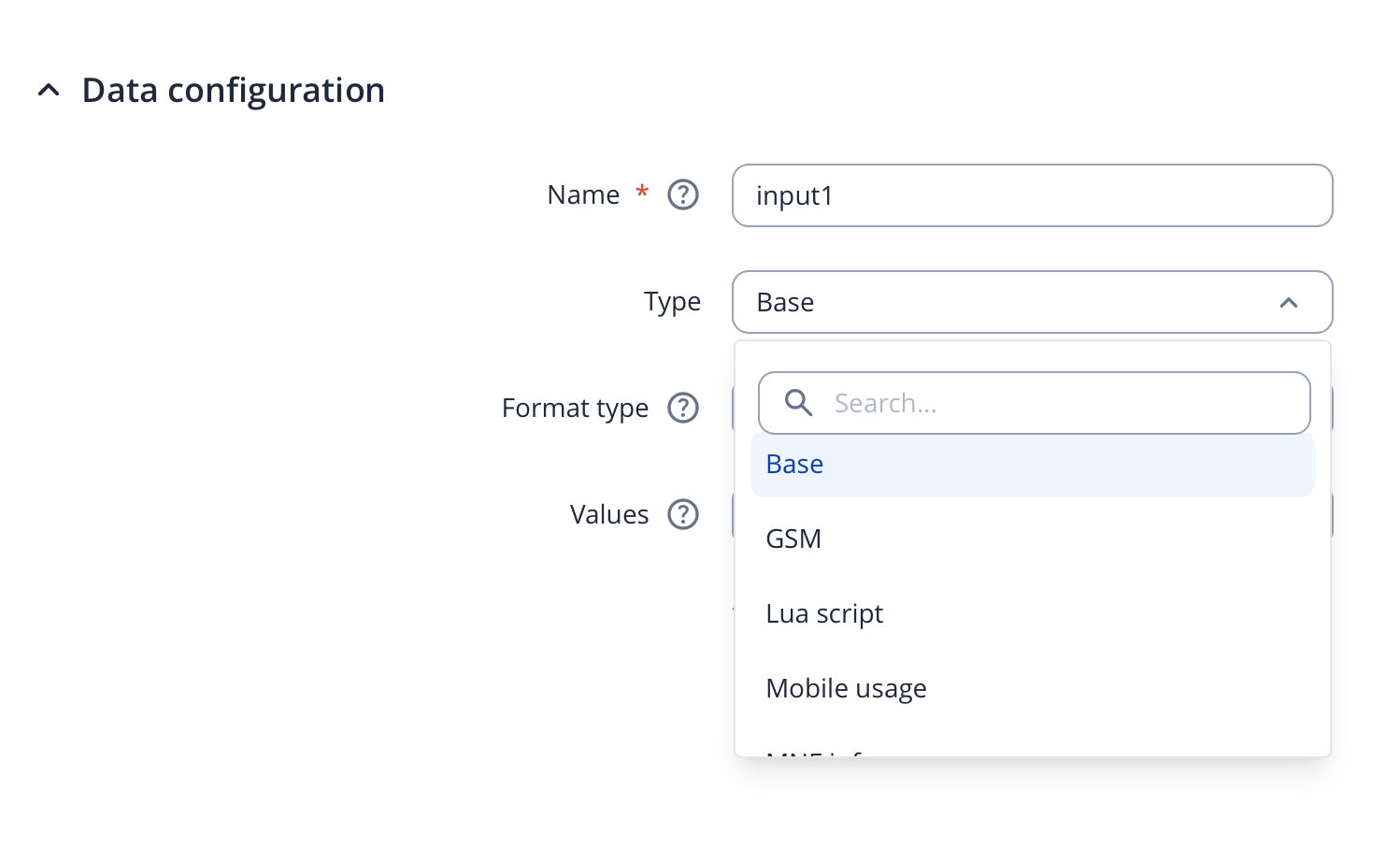
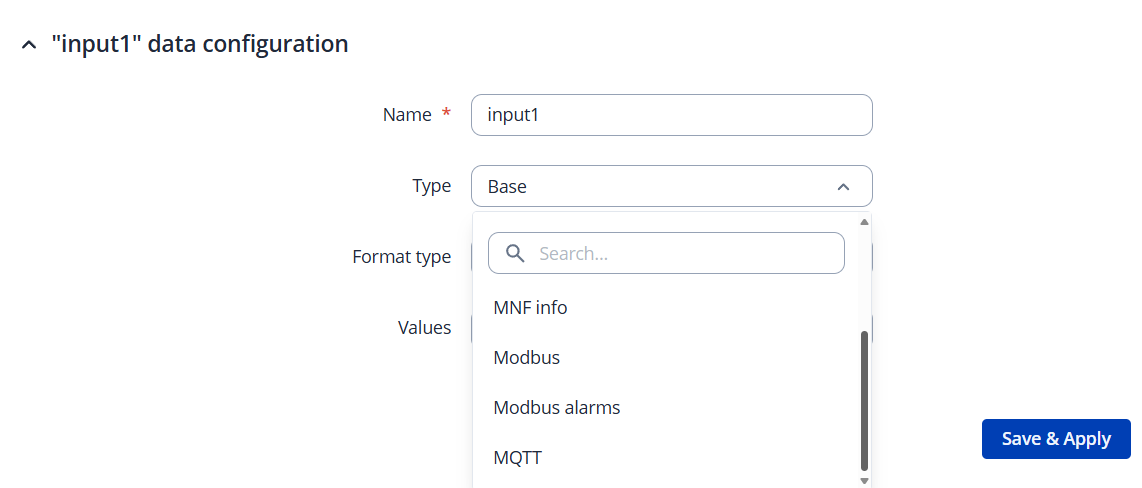
I want to use the Services - Data to Server function in my RUT956 to send gps information to a MQTT broker, but gps data does not appear as an option for input data.
I am using that Data to Server function to send gsm data, and it works ok
And I am sending gps data to an AVL server, running perfectly.
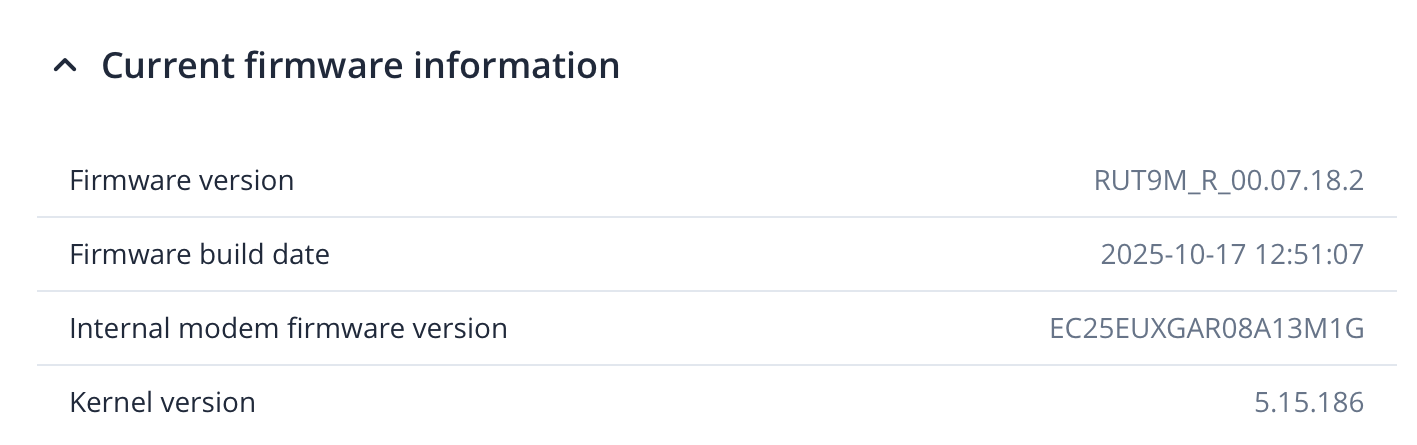
The router has the most recent version of the firmware. With the previous one, the problem was the same.
To help us investigate this case further, could you please provide some additional details?
Firmware version:
Which firmware version are you currently using? If it’s not the latest one, please try upgrading to the most recent firmware version.
GPS option visibility:
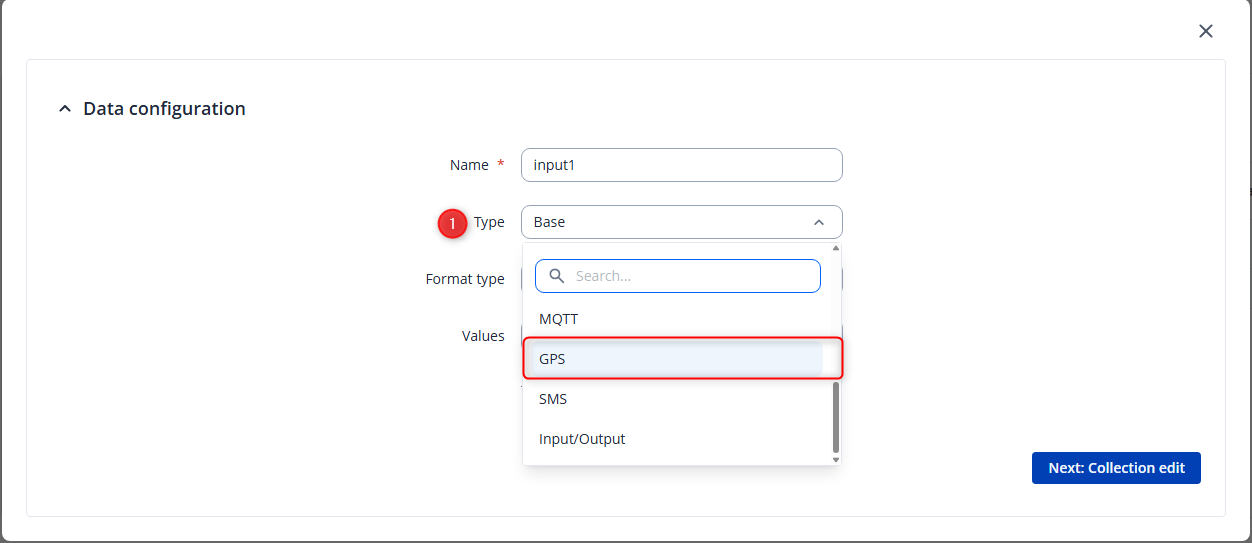
You mentioned that the GPS option is not available in the dropdown menu. I have tested this on my side, and it appears to be working as expected. Services → Data to Server → Add, in the “Type” dropdown menu. I’ve attached a screenshot below to show how it should look:
Could you please confirm whether you are referring to the following Data to Server section and currently GPS option is not available from the following drop-down menu?
Flashing the device:
If the GPS option is still not visible, please try flashing the device from the bootloader menu. Please note that this process will erase all previously configured settings. However, it can often resolve issues related to firmware.
You can find a detailed step-by-step guide here:
Once you’ve tried these steps, please let me know the results.
Could you please clarify if the option is reachable through search bar? By simply typing in the name of the option (GPS in your case)? Also there should be a scrollbar that allows you to scroll through more options.
Additionally, if the bootloader menu fails to resolve this issue, you can try to access the device using a different browser or in private/incognito window. If the option will be visible in the private/incognito window, that would indicate, that the issue is cache related. It can be resolved simply by clearing your browser’s cache.
If there is a backup obtained before applying the bootloader solution, is it possible to restore that backup after loading with the bootloader the same firmware version as before?
I understand your concerns; however, I would strongly recommend giving the bootloader option a try. Based on my tests, the GPS data selection is available in the dropdown menu, which suggests that the issue may be related to the device firmware itself.
The bootloader menu is a special recovery mode used when the router becomes inaccessible, even after performing a factory reset. Unlike a standard firmware upgrade, the bootloader process reformats the device’s flash memory before reinstalling the firmware, effectively performing a clean installation.
The bootloader is typically our last resort when attempting to recover a device. Additionally, it helps us determine whether the issue is software-related or potentially caused by hardware.
I am aware of your concern about the device backups. To give you full control and peace of mind, here’s a step-by-step guide on how to download and securely save your device’s configuration backup.
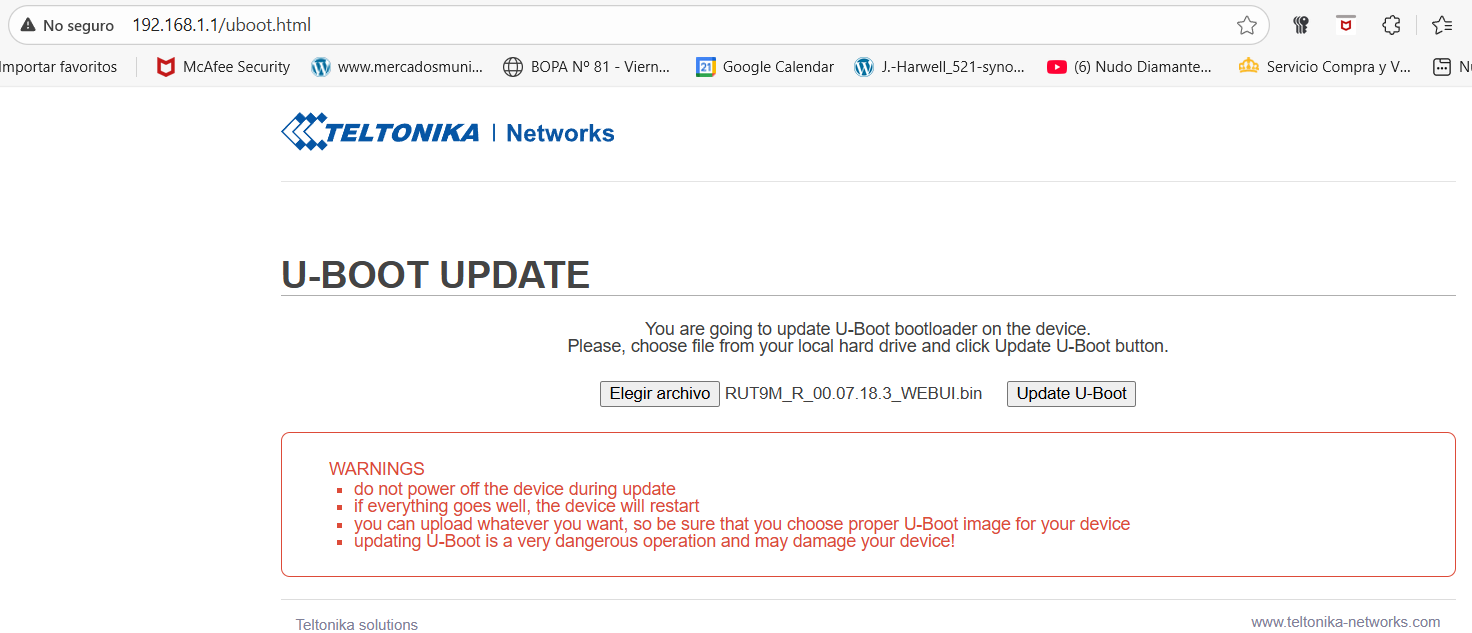
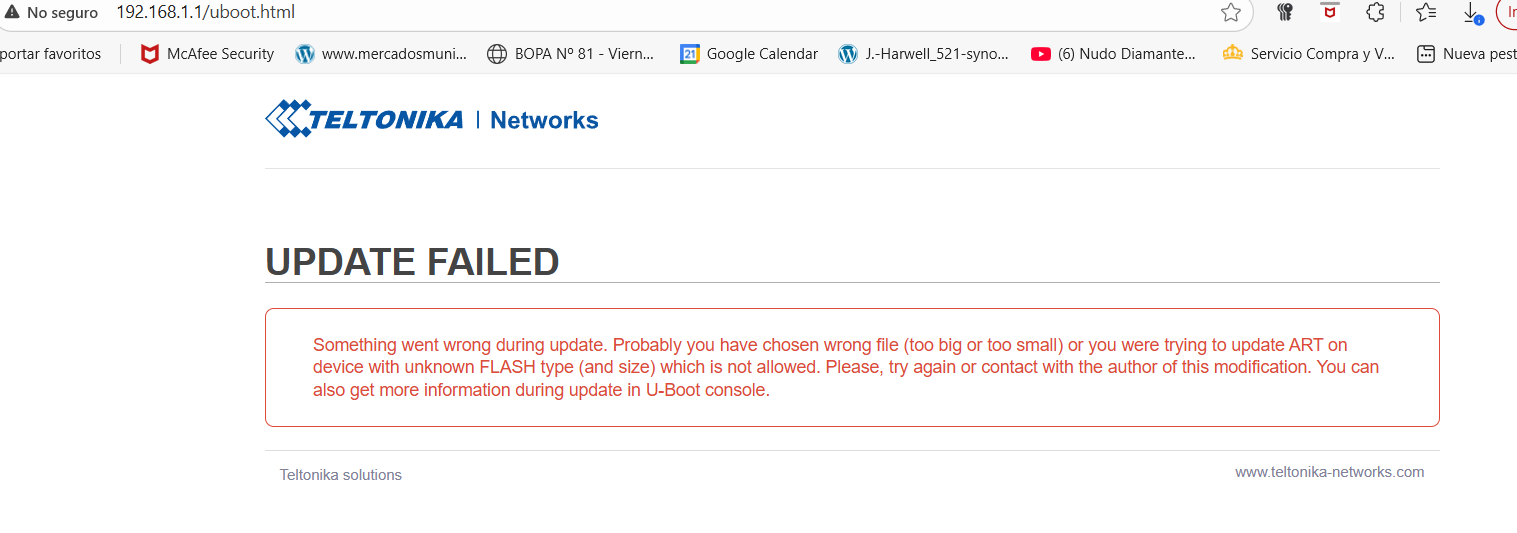
Based on the screenshots, it appears you are trying to access uboot.html, which is intended for updating the bootloader version rather than the device firmware.
To load the firmware through the bootloader menu, please go to 192.168.1.1/index.html instead. On this page, the firmware upload should function as expected.
Finally I was able to update the firmware using the bootloader, but sadly it did not solved the problem with the GPS info in the Data to Server.
No GPS option is shown in the input list:
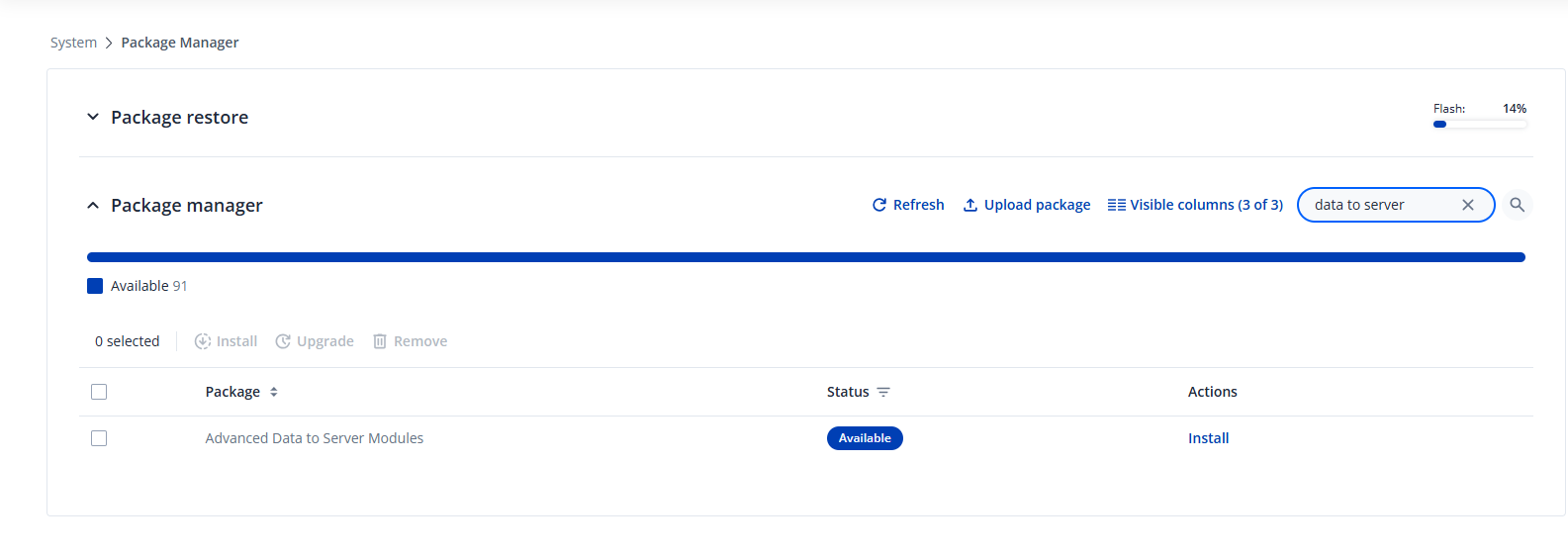
I have found a solution. The GPS data can be sent once the Advanced Data to Server modules are installed. To do this, go to System → Package Manager and enter “Data to Server” in the search bar, as shown in the screenshot below.
Just, please get updated the manual, as it is not clear that possibility.
I have just found there is a mention to that package to update the list of type of servers, but not for the list of type of inputs: ”Note: on some devices it is necessary to install an additional package to see additional server types Advanced data to server modules.”