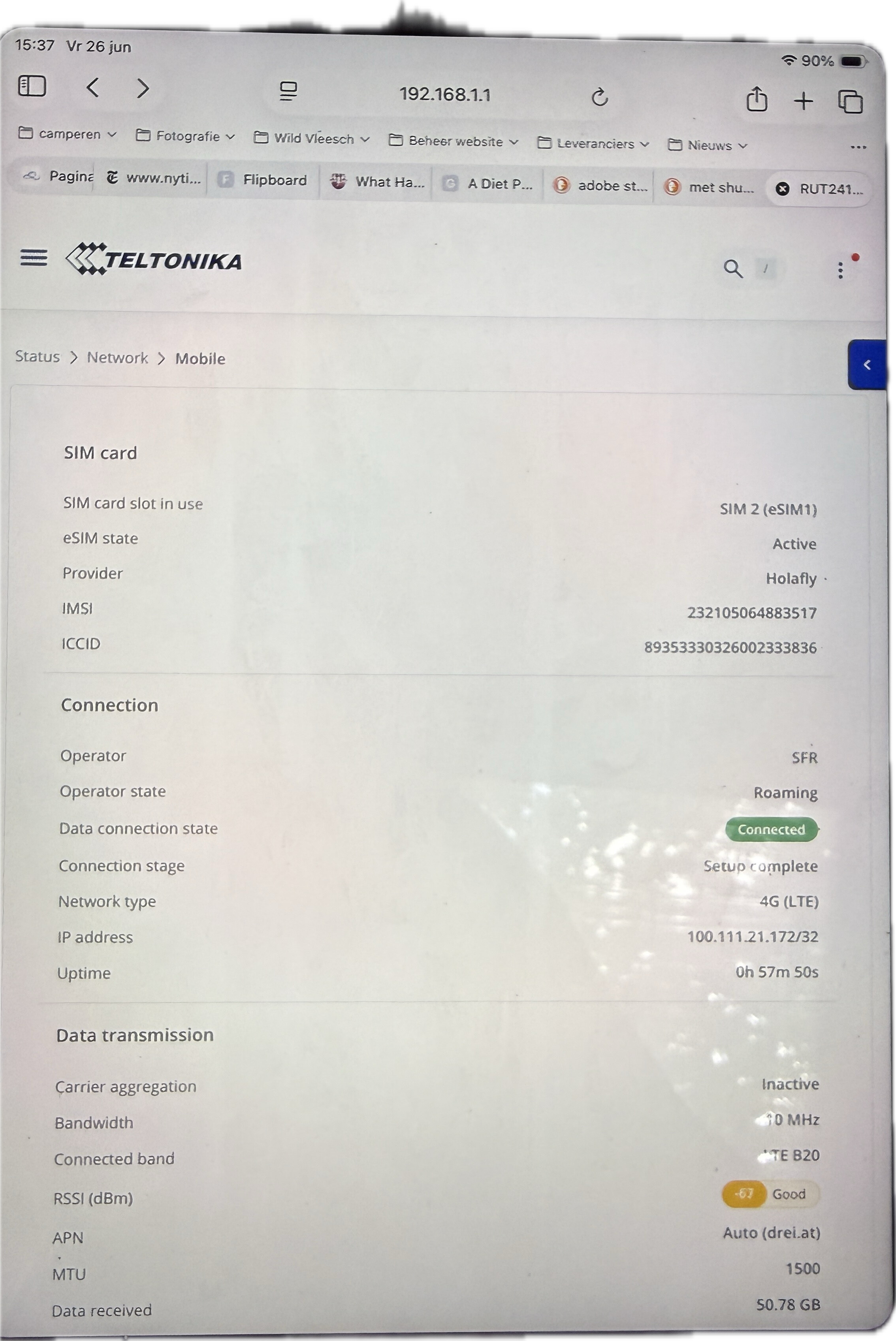
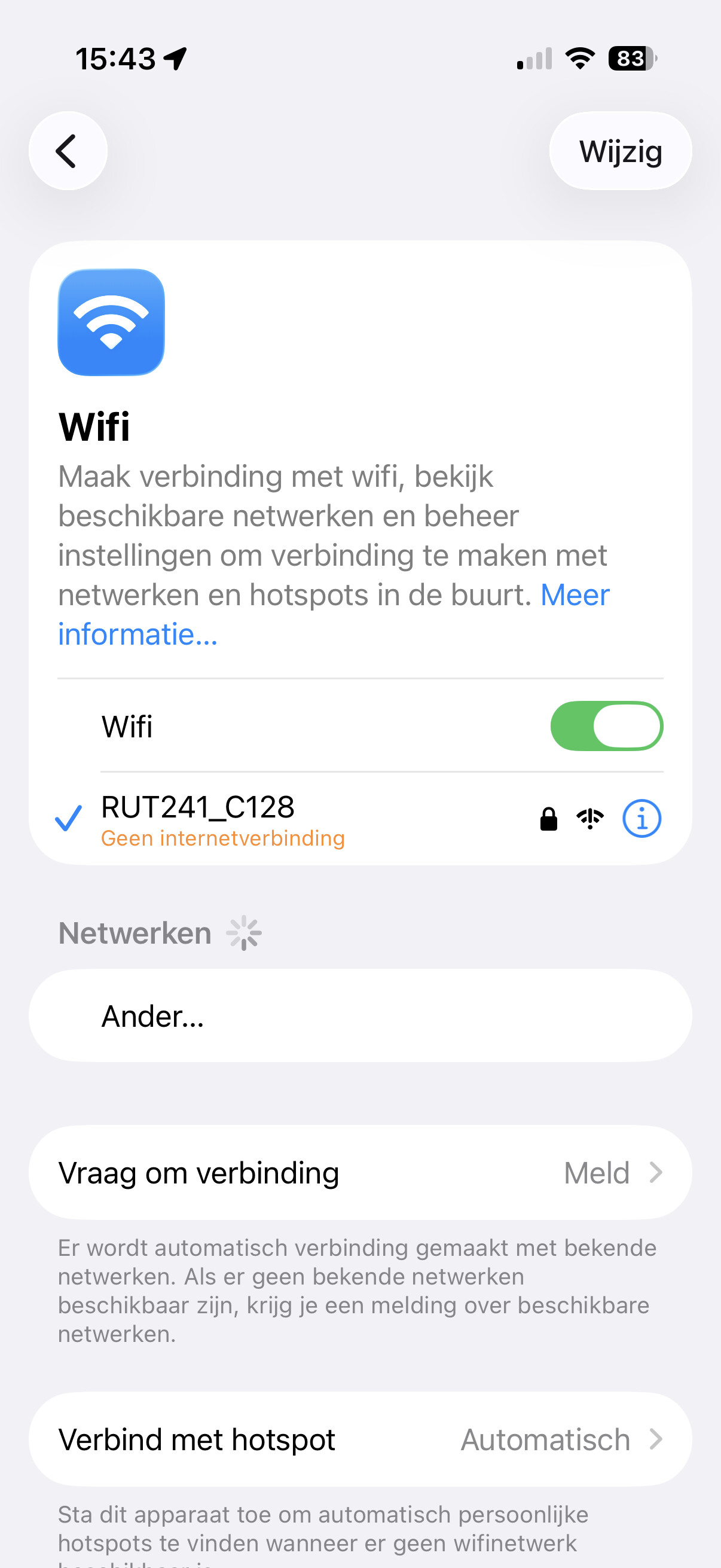
I have a rut241 with an eSIM in my camper. Last week it stopped connecting to the internet. In the panel it says the modem is connected. But on my iPhone I get a message that the modem isn’t connected to the internet. Holafly eSIM.
Restarted the connection, restarted the router. Nothing helps.
Can you let us have a little more info so that we can help you?
Device Firmware?
Modem Firmware?
What antennas are you using?
Are you in the country where the esim was purchased or are you elsewhere in the world? Oooops OK, just looked up Holafly, you choose a destination and the dates your visiting the country. Are still in that country and within the dates you set at purchase?
Do you have a data limit that you have exceeded?
Can you post a screenshot of Status > Network > Mobile
Not saying this will resolve the issue, but you are out of date with your firmware. I would download the most recent firmware from here: https://wiki.teltonika-networks.com/view/RUT241_Firmware_Downloads and perform a manual upgrade and if possible selecting not to save settings.
It may or may not resolve the issue but updating without saving settings can and does sort out all sorts of problems.
It hasn’t, but I didn’t use the router for the last 6 weeks. In 2 weeks time I will be traveling again, but I won’t be using sim again. Too risky in that router.
We can see that you have previously provided a screenshot of the mobile connection status. However, to check the current status of the mobile connection, could you please provide a new screenshot from Status → Network → Mobile? Please make sure to blur any sensitive information before uploading the screenshot.
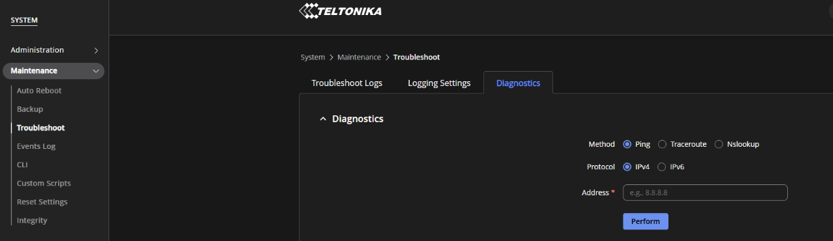
Please let us know the results of the ping test and provide the requested screenshot, as this will help us narrow down the possible cause of the issue.