RUT200 & 07.22.1 update - Mosquitto-client-ssl

I used to run this (found it on this site years ago!) script after a firmware upgrade:

1. ssh root@192.168.8.1
2. opkg -e /etc/opkg/openwrt/distfeeds.conf update
3. opkg -e /etc/opkg/openwrt/distfeeds.conf install mosquitto-client-ssl
4. opkg -e /etc/opkg/openwrt/distfeeds.conf install nano
4.b sed -i’’ ‘/export ENV=\/etc\/shinit/a export TERMINFO=\/usr\/local\/usr\/share\/terminfo’ /etc/profile

This time its not working. Nano I can do without but I do need mosquitto_pub!
My suspicion is this old /etc/opkg/openwrt/distfeeds.conf.

root@RUT200:~# cat /etc/opkg/openwrt/distfeeds.conf
src/gz openwrt_core Index of /releases/21.02.0/targets/ramips/mt76x8/packages/
src/gz openwrt_base Index of /releases/21.02.0/packages/mipsel_24kc/base/
src/gz openwrt_vuci https://downloads.openwrt.org/releases/21.02.0/packages/mipsel_24kc/vuci

Can anyone point to the correct way to install the mosquiitto-client-ssl package?

Regards, Martin

Hit the same issue on RUT956 with firmware 7.22/7.23 (installing rsync). Adding my notes here as it looks this is impacting a few users.

Compared /etc/opkg/openwrt/distfeeds.conf with the 7.21 release and noted that https://downloads.openwrt.org/releases/21.02.0/packages/mipsel_24kc/packages had been removed (along with mipsel_24kc/luci). I adding this line into distfeeds.conf on 7.22 and this resolved the issue (note that the URL may differ depending upon the router CPU).

I suspect that this was an unintentional change (cannot see anything relevant in the release notes) however it’s also possible that re-adding the feed will create issues.

Hi,

Thanks for the info. Before I try that, do you have an opinion on this?
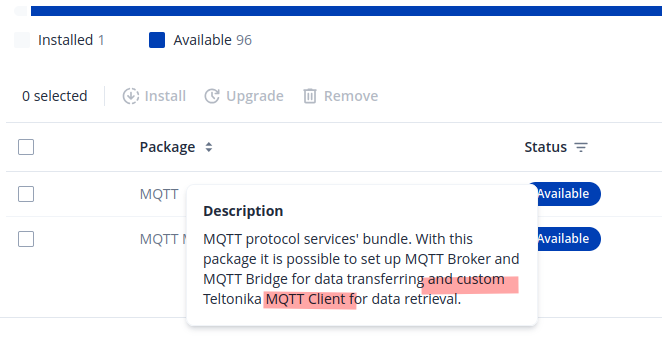
If I hover over the MQTT package, I see this. Do you know if that is referinhg to mosquitto_pub & mosquitto_sub?

Regards, M

It seems as though this problem is still ongoing? I had to edit my distfeed.conf to this:

src/gz openwrt_core https://downloads.openwrt.org/releases/21.02.0/targets/ramips/mt76x8/packages` src/gz openwrt_base https://downloads.openwrt.org/releases/21.02.0/packages/mipsel_24kc/base src/gz openwrt_packages https://downloads.openwrt.org/releases/21.02.0/packages/mipsel_24kc/packages #src/gz openwrt_vuci ``https://downloads.openwrt.org/releases/21.02.0/packages/mipsel_24kc/vuci`

… after upgrading to RUT2M_R_00.07.22.3, before I could install the mosquito-client-ssl.

Greetings, @mprowe ,

Apologies for delayed response.

Here are step-by-step instructions on how to install mosquitto-ssl package to your RUT200.

Step 1: Connect to the Router via SSH

  1. Open your SSH client.
  2. Connect to the router using its LAN IP address (default is 192.168.1.1) and log in as the root user:ssh root@192.168.1.1
  3. Enter your router’s admin password when prompted.

Step 2: Add the Missing OpenWrt Package Feed

By default, the router’s embedded configuration may omit the standard OpenWrt package repository layout. Run the following command to append the correct OpenWrt repository feed to the configuration file:

echo "src/gz openwrt_packages https://downloads.openwrt.org/releases/21.02.0/packages/mipsel_24kc/packages" >> /etc/opkg/openwrt/distfeeds.conf

Step 3: Update the Package Lists

Refresh the package manager (opkg) lists to register the newly added repository:

opkg -e /etc/opkg/openwrt/distfeeds.conf update

Note: You can safely ignore any “Failed to download… vuci/Packages.gz” errors if they appear; this is a known legacy path behavior and will not impact this installation

Step 4: Install the Mosquitto SSL Client

Run the installation command for the SSL-supported version of the client:

opkg -e /etc/opkg/openwrt/distfeeds.conf install mosquitto-client-ssl

Troubleshooting Note: If the installer fails due to a pre-existing library dependency conflict on the router, use this force command to overwrite it and complete the installation:

opkg -e /etc/opkg/openwrt/distfeeds.conf --force-depends --force-overwrite install mosquitto-client-ssl

Step 5: Verify the Installation

To confirm that the tools have been successfully deployed, verify the installation by calling the help menu for either utility:

  • To test the publishing tool:mosquitto_pub --help
  • To test the subscribing tool:mosquitto_sub --help

If the terminal displays the utility options, the installation is complete and the Mosquitto SSL client is ready for use in your scripts.

If you run into any issues during the process or have any questions, please let me know!

Best regards,
V.