Currently, we are carrying out a project in which we use routers connected to Hikvision cameras. To create a direct connection between the server and the cameras, we use the RMS VPN from Teltonika.
We have purchased the credits to make this connection possible, and everything works correctly. The issue is that every time the client equipment (server) is restarted, it does not automatically reconnect to the VPN.
Thank you for reaching out. You mentioned that the client’s server is unable to reconnect to the VPN after a restart. Please correct me if I misunderstood, but are you able to re-establish the VPN connection manually after the server restarts?
If so, could you please provide more details about the server:
Is it running on a Windows machine, or is it a dedicated device (for example, an NVR from Hikvision)?
How are you manually re-establishing the connection?
This information will help with further investigation.
The device is a Windows machine. After restarting, we have added the RMS VPN to the Windows startup folder, and it opens correctly. However, the “connect” checkbox must be selected manually from the application. Once this is done, it connects properly to the routers’ VPN configured through RMS.
The question is whether it is possible to make this connection automatically when Windows restarts.
Following our discussion, here are the steps to make the RMS VPN connect automatically after a Windows restart.
The startup folder (shell:startup) it might be currently empty, so we need to create a shortcut with the correct auto-connect flag.
Steps:
Locate the OpenVPN executable at:
C:\Program Files\OpenVPN\bin\openvpn-gui.exe
Right-click the desktop → New → Shortcut and paste the following as the location:
“C:\Program Files\OpenVPN\bin\openvpn-gui.exe” --connect “your-profile.ovpn”
(Replace your-profile.ovpn with the actual filename found in C:\Program Files\OpenVPN\config)
Name the shortcut (e.g. OpenVPN Autoconnect) and save it.
Press Win + R, type shell:startup, and hit Enter.
Move the shortcut into that folder.
Restart the machine - the VPN should now connect automatically.
If you are unsure of the profile filename, navigate to C:\Program Files\OpenVPN\config\ and look for the .ovpn file. The name must match exactly what is used in the --connect argument.
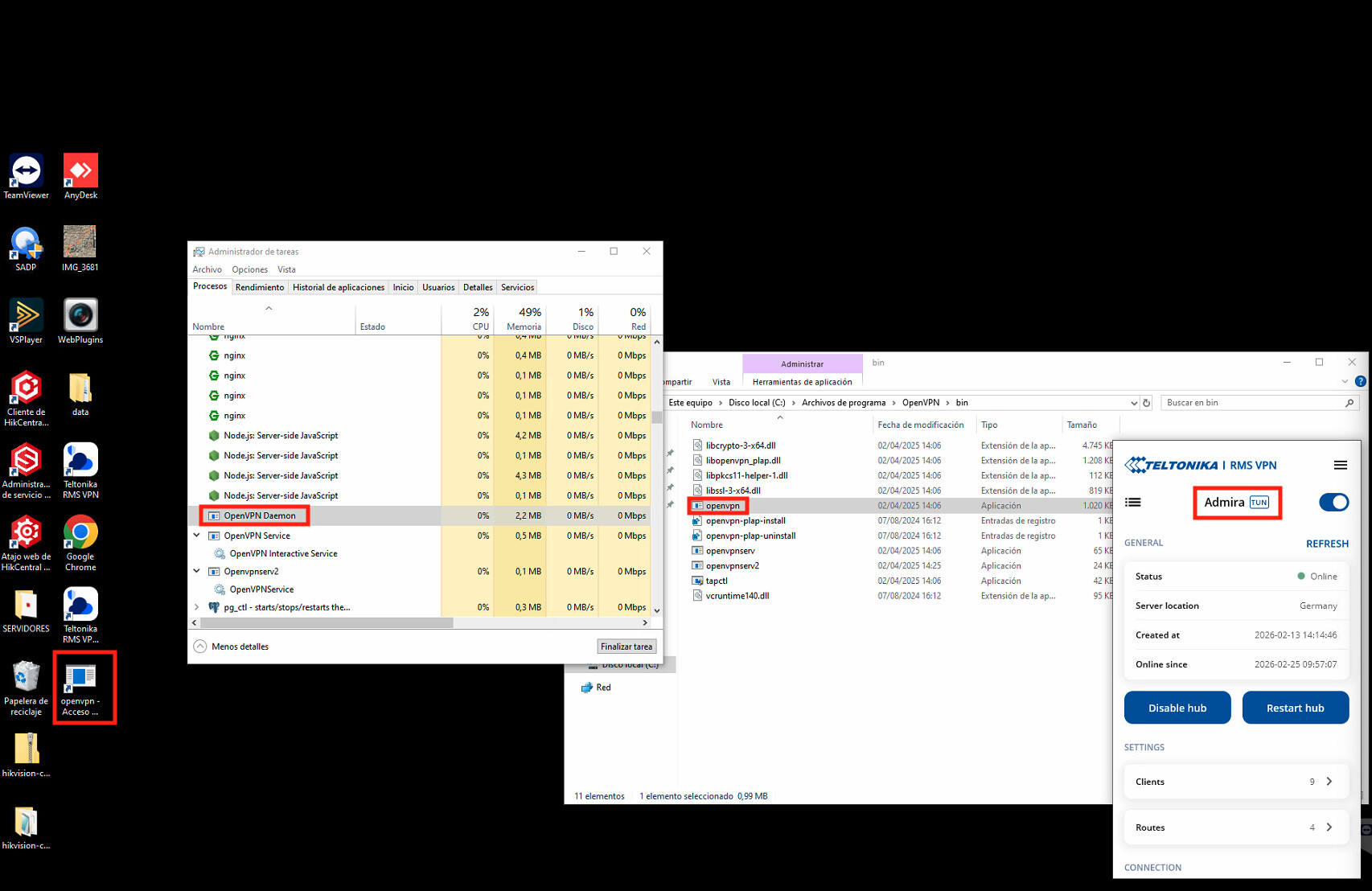
I have followed your instructions, but the files do not exactly match what was mentioned in the thread.
However, we have located the service that performs the connection and identified the executable file.
We created a shortcut with the parameter --connect Admira.ovpn. The file runs, but the process does not remain open and the connection is not established.
In the OpenVPN\config folder, we did not find any user file, so we used the username shown in the connection settings.
The Teltonika RMS VPN app unfortunately doesn’t support auto-connect on startup out of the box, which is why the checkbox has to be ticked manually each time. The good news is that your existing VPN profile works perfectly with two other free clients that both handle auto-connect without any hassle.
Here are your options:
OpenVPN GUI
A lightweight client that supports auto-connect via a startup shortcut. Setup is simple - you create a shortcut with your profile name passed as a --connect argument (e.g. openvpn-gui --connect your-profile.ovpn), then drop it into the Windows Startup folder. Once done, it connects automatically every time Windows starts with no manual steps needed.
OpenVPN Connect
The official OpenVPN client, which has a built-in “Connect Latest” button that reconnects to your most recently used profile, as well as a “Restore Connection” option that automatically re-establishes the VPN after a restart.
Both clients are free to download and your existing .ovpn profile from RMS can be imported into either one without any modifications.