Hi, I wonder if anyone can help. I recently purchased a RUTC50. It is my first teltonika router and the UI is a learning curve for me. I am having problems trying to stream from my Apple HomeKit secure camera when I am away from home. The camera is an aqara G2H pro. I can stream from the camera from the aqara app but not from Apple home when I am away from home. It works fine when I’m at home connected to the same network. I have gone round in circles trying to find a solution and tried all of the usual fixes regarding camera and Apple home settings. I know Apple hksv can have issues with certain router settings, so I think this could be my problem. Can anybody help me regarding what settings I need to change on my router and how to change them. Please bear in mind I am not an IT engineer, just an ordinary guy with basic knowledge. Any help will be greatly appreciated.
Greetings, @rimskylee,
Welcome to the Teltonika Community!
Could you please provide the following information to help with the investigation:
- Which firmware version is installed on your device?
- A network topology or diagram showing how your network is connected and how you plan to access it remotely.
This will allow me to better understand the setup and provide accurate guidance.
Best regards,
V.
Hi Vilius,
The firmware I am running is RUTC_R_00.07.20.3
I have my main network which comprises of 2 ssid’s, one which is set on 2.4ghz and the other on 5ghz. I also have a guest network with its own ssid on a guest lan.
I have most of my smart home devices including my aqara g2h pro, connected to the 2.4ghz ssid and I mainly use the 5ghz ssid for my MacBook, iPad and iPhone.
I have my Mac mini, Apple TV 4K, Philips hue hub and Samsung tv connected via ethernet on the same lan as my ssid’s.
I am trying to view the live stream from my aqara camera through my apple home app on my iPhone. this works fine when I’m home connected to the network, but when I’m disconnected from the network, I just get the relentless spinning wheel and it won’t connect to the live stream. I can connect to the live stream on the aqara app though. I have tried switching off my vpn and apple private relay and none of this makes any difference.
I have been told that apple bonjour which uses multicast dns can be an issue with some routers, which is what I think could be a possible cause of my problem, but I am no tech expert and I only really understand the basics, so I am hoping you can help me.
Thanks
Lee
Hello, Lee,
Thanks for the detailed description of your setup - that really helps! There are a couple of things we might try. Let me walk you through it.
Why doesn’t it work:
The reason the Aqara app works remotely but Apple Home doesn’t comes down to how each app handles remote access. The Aqara app uses Aqara’s own cloud servers to relay the stream - so it doesn’t care much about your router settings. Apple HomeKit Secure Video is much more privacy-focused and works differently: it relies on a device in your home (called a “Home Hub” - in your case, your Apple TV 4K) to act as a bridge between your camera and your iPhone when you’re away. If the hub can’t communicate properly with the camera on your local network, remote access simply won’t work.
The most likely culprits here are:
- Your Apple TV 4K may not be properly set up or recognised as your Home Hub
- Your RUTC50 router may have settings that are blocking devices on different connections (wired vs Wi-Fi) from talking to each other
Things you may try to resolve the issue:
- Check your Apple TV 4K is acting as your Home Hub
This is the most important step. Without a working Home Hub, remote camera access is simply not possible.
• On your Apple TV, go to: Settings → Accounts → iCloud
You should see “HomeKit: Connected” and your home name listed.
• On your iPhone, open the Home app → tap the house icon (top left) → Home Settings → Home Hubs & Bridges
Your Apple TV should show as “Connected” (not “Standby” or “No Response”).
• If it shows anything other than “Connected”, unplug your Apple TV for 30 seconds, plug it back in, and check again.
Important: Your Apple TV must be plugged in, powered on, and connected to your main network (not the guest network) at all times for remote access to work.
- Make sure your camera and Apple TV are on the same network
Your Apple TV is on Ethernet, and your camera is on your 2.4 GHz Wi-Fi. They need to be on the same network (LAN) to communicate. Please double-check that:
• Your Aqara camera is connected to your main 2.4 GHz SSID - NOT the guest network
• Your Ethernet and Wi-Fi connections are on the same LAN (this is usually the default, but worth confirming)
- Disable AP Isolation on your RUTC50 (most likely router fix)
Your router may have a feature called “Client Isolation” turned on. This feature is designed to stop Wi-Fi devices from communicating with each other - which unfortunately also stops HomeKit from working properly.
To check and disable it:
-
Open a browser and go to 192.168.1.1 (your router’s LAN IP)
-
Log in with your admin credentials
-
Go to Network → Wireless
-
Click Edit on your 2.4 GHz network
-
In additional settings look for a setting called “Isolate Clients”
-
If it’s turned ON, turn it OFF and save
-
Repeat the same steps for your 5 GHz network
-
Check that Bonjour/mDNS traffic isn’t being blocked
Apple HomeKit uses a technology called Bonjour to let devices find each other on your network. Some routers block this by default.
-
In your router settings, go to Network → Firewall
-
Check that there is no rule blocking UDP port 5353 (this is the port Bonjour uses)
-
If you see any rules blocking multicast traffic (anything going to addresses starting with 224.0.0.), disable them
-
Restart everything in the correct order
Once you’ve made the above changes, restart your devices in this order and wait 2 minutes between each step:
-
RUTC50 router - power off, wait 30 seconds, power back on. Wait 2 minutes.
-
Apple TV 4K - unplug, wait 30 seconds, plug back in. Wait 2 minutes.
-
Aqara G2H Pro camera - unplug, wait 30 seconds, plug back in. Wait 2 minutes.
-
Test remote access
-
Turn off Wi-Fi on your iPhone so it’s using mobile data only
-
Open the Home app and try to view your camera
If the stream loads - you’re all sorted! If it still spins, give it 5 more minutes as the Apple TV can take a little while to fully reconnect to iCloud after a restart.
If the issue still persists, please reply with the following and we’ll dig deeper:
• A screenshot of Home app → Home Settings → Home Hubs & Bridges (showing the status of your Apple TV)
• Whether AP Isolation was enabled or not when you checked
• Whether your Apple TV is connected via Ethernet or Wi-Fi
Hope this gets you up and running,
Best regards,
V.
Hi Vilius,
Thank you for taking the time to try and help me.
I have tried everything you have suggested, but still no joy.
I have added a screenshot shot of my home app as requested.
AP isolation was disabled.
Apple TV 4K is connected via Ethernet. I did try it also by connecting via WiFi and that didn’t work either.
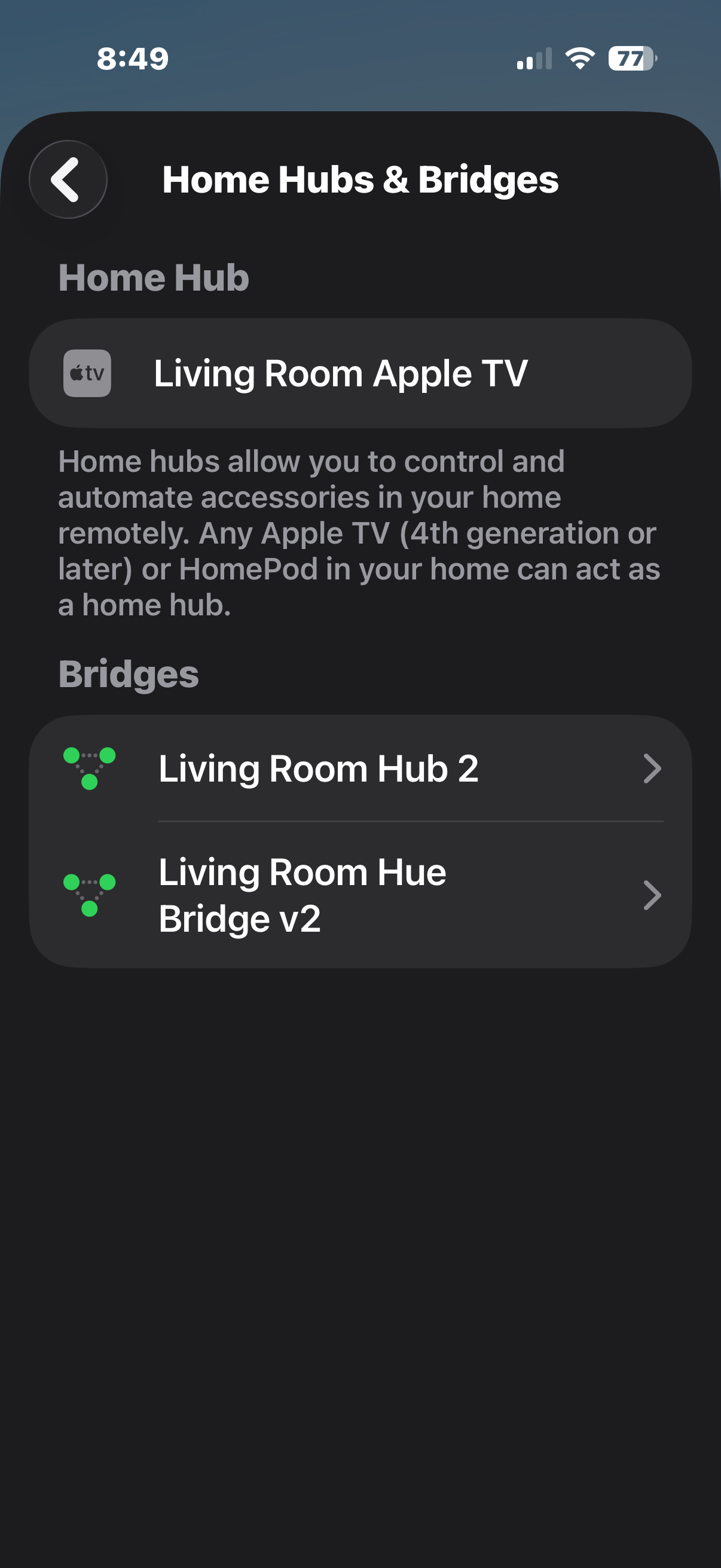
I look forward to your reply.
thanks
Lee
Hi,
Thanks for sharing the screenshot - that was very helpful.
It shows that your Apple TV is listed as a Home Hub, but it is not showing as “Connected.” This usually means it isn’t properly acting as the active Home Hub, which would prevent HomeKit Secure Video from working correctly.
Please follow the steps below:
- Check Home Hub status on Apple TV
- On your Apple TV, go to: Settings → AirPlay & HomeKit
- Confirm it says the Apple TV is connected to your Home
- If not, proceed to the next steps
- Sign out and back into iCloud on Apple TV
- Go to: Settings → Users & Accounts → iCloud
- Sign out of iCloud
- Restart the Apple TV
- Sign back in using the same Apple ID as your iPhone
- Verify iCloud settings on your iPhone
-
Go to: Settings → [your name] → iCloud
-
Ensure the following are enabled:
- Home
- Keychain
- Restart devices (important order)
- Restart your router
- Then restart the Apple TV
- Then power cycle the camera
- Confirm Home Hub status
- Open the Home app → Home Settings → Home Hubs & Bridges
- Check that your Apple TV now shows as “Connected”
- If still not connected
- Remove the Apple TV from the Home app
- Re-add it again
- Alternatively, test by connecting the Apple TV to a simple network (e.g., mobile hotspot) to rule out router-related issues
Once the Apple TV shows as “Connected,” the camera streaming and recording should start working correctly.
Please let us know how it goes or if you need further assistance.
Best regards,
V.
Hi Vilius,
I have tried everything you have suggested but still no avail. The hub still doesn’t show as connected, even though it clearly is, as every other aspect of my Apple home is working flawlessly and every thing is stable.
I have ruled out the router as the problem after connecting the hub to a hotspot from my phone and this didn’t resolve it.
I am beginning to think it could be an issue with the aqara g2h pro, as one thing I have noticed, is I can’t update the firmware on it anymore. It just won’t go past 35%. I have tried everything that has been suggested that I could find online to fix the issue, but nothing seems to work.
Maybe I need to invest in another Apple HomeKit camera and hopefully that will resolve the problem.
Thanks for taking the time and effort to try and help me resolve this. It’s much appreciated.
Lee