Slow mobile Internet does not always mean that the cellular signal is weak. A connection can show good signal strength and still provide poor throughput because of interference, cell congestion, limited bandwidth, network technology, device capabilities, or local network limitations.
This guide provides a practical way to identify the bottleneck and improve mobile performance where possible.
1. Start with a proper speed test
Before changing any configuration, establish a reliable baseline.
For the most accurate comparison:
- Connect a PC directly to the router via Ethernet where possible.
- Avoid testing over Wi-Fi initially, since Wi-Fi conditions can become a separate bottleneck.
- Run several tests rather than relying on a single result.
- Test at different times of the day.
- Use the same test server when comparing results.
- Record both download and upload speeds.
- Test with the same SIM and, if possible, compare the result with another device at the same location.
Teltonika’s Speed Test utility can be used to measure WAN throughput. The selected test server can also affect the result, so different servers may produce different results.
Official Wiki: RUTX11 Speed Test
Related: LTE Speed Discrepancies
Important: A phone being faster than a router does not automatically indicate a router problem. Different devices can use different LTE categories, carrier aggregation capabilities, frequency bands and modem technologies, which can produce different throughput under the same conditions.
2. Check the cellular signal quality - not just the signal bars
Signal bars are not enough to diagnose mobile performance.
For 4G and 5G, pay particular attention to:
| Parameter | What it tells you |
|---|---|
| RSRP | Received signal strength |
| RSRQ | Signal quality and interference conditions |
| SINR | Signal-to-interference-plus-noise ratio and an important indicator of throughput potential |
Teltonika specifically recommends evaluating signal strength together with signal quality. A router can have relatively strong RSRP while still experiencing poor RSRQ or SINR because of interference or other radio conditions.
As a general 4G/5G reference:
| Parameter | Good / Excellent | Possible concern |
|---|---|---|
| RSRP | ≥ -90 dBm | < -100 dBm |
| RSRQ | ≥ -15 dB | ≤ -20 dB |
| SINR | ≥ 13 dB | ≤ 0 dB |
These values should be treated as reference ranges rather than absolute requirements. Actual performance depends on the modem, carrier and radio environment.
Where to check it
In RutOS, current mobile information can generally be viewed under:
Status → Network → Mobile
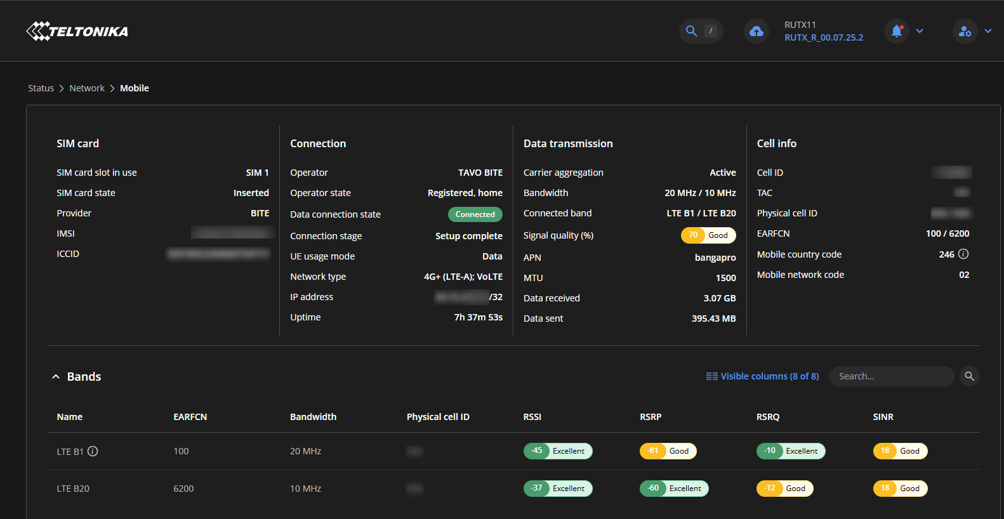
On legacy OS you can check Status → Network
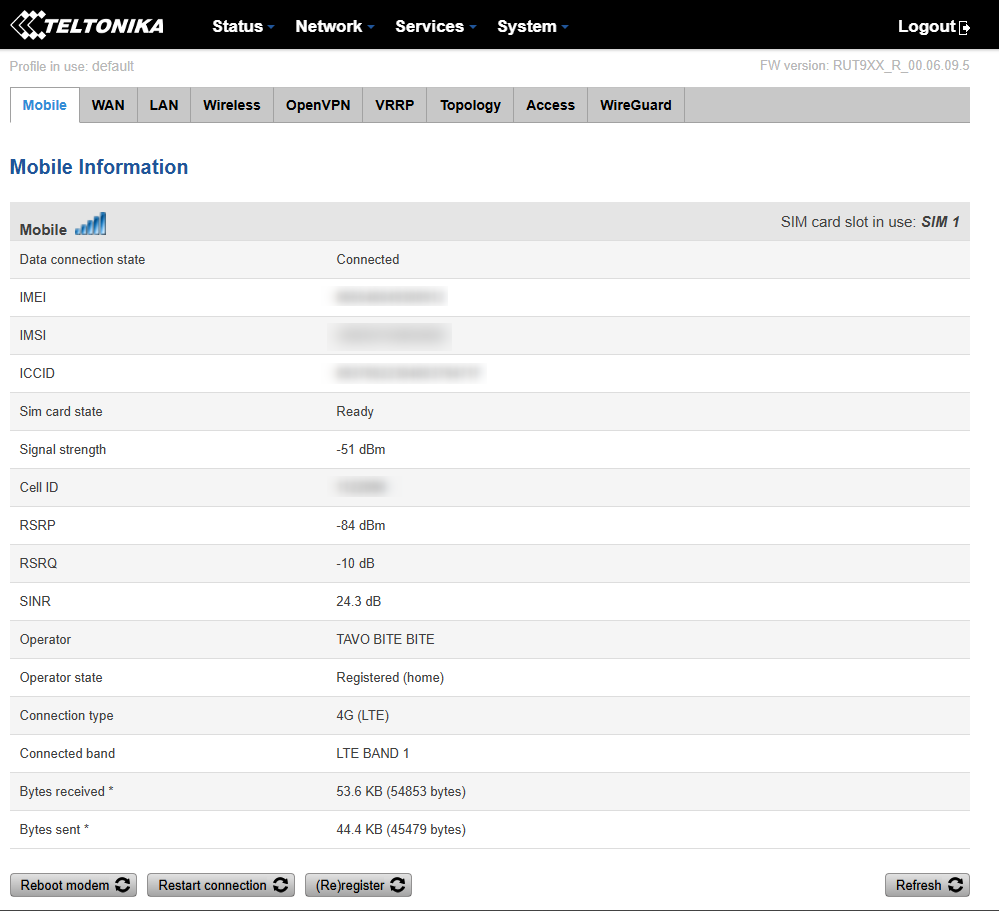
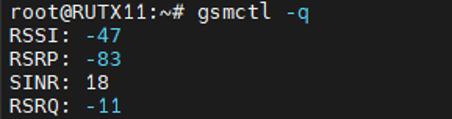
You can also check signal values from CLI/SSH:
gsmctl -q
On legacy OS you will need to use 3 separate commads:
gsmctl -W - To see RSRP value
gsmctl -Z - To see SINR value
gsmclt -M - To see RSRQ value

On supported firmware, this can return values such as RSSI, RSRP, SINR and RSRQ.
Official Wiki: Mobile Signal Strength Recommendations - 4G and 5G
3. Try moving the router
Router location can have a surprisingly large effect on throughput.
Try:
- Moving the router closer to a window.
- Moving it away from metal objects, reinforced concrete and other obstructions.
- Trying different sides of the building.
- Rotating the router and antennas.
- Testing several locations before deciding that the current location is optimal.
Do not judge the location only by the number of signal bars. While moving the router, monitor RSRP, RSRQ and SINR and compare actual speed tests.
Official Wiki: LTE Speed Discrepancies
4. Check the antennas
Make sure:
- All required cellular antennas are connected.
- Connectors are properly tightened.
- The antennas are connected to the correct antenna ports.
- Antennas are not damaged.
- The antenna cables are not unnecessarily long or damaged.
- The antennas are positioned according to their intended installation.
· If the device is installed inside a metal enclosure, try placing the antennas outside the enclosure or use suitable external antennas, as metal can significantly attenuate the mobile signal.
Trying different antenna orientations can improve radio conditions. Different antenna types, including higher-gain or directional antennas, may also be useful in difficult coverage conditions.
Tip: Do not automatically assume that a higher-gain antenna will provide better performance. Test the actual RSRP, RSRQ, SINR and throughput after changing the antenna.
5. Check which network technology and band are actually being used
A router may have excellent coverage but be connected to a congested or lower-capacity band.
Check the currently used mobile network information.
For example:
gsmctl -F

LegacyOS view:

This can provide serving-cell information and other mobile network parameters on supported devices.
Look for:
- LTE vs 5G. In this example our router is using LTE technology
- Current frequency band. In this example band is LTE_B1
- 24602 shows us mobile country code and mobile network code
6. Experiment with band locking
Band selection can have a significant effect on throughput.
On supported RutOS devices, band selection is available under:
Network → Mobile → Connection
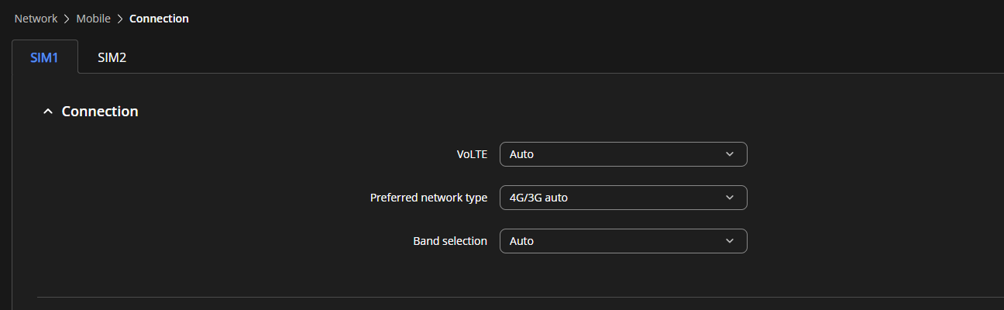

The exact options depend on the modem and device model.
Different bands can provide different speeds because available bandwidth and cell congestion may differ between frequencies. A band with stronger signal is not necessarily the fastest option.
Recommended approach
Do not immediately lock the router to one band.
Instead:
- Test the router with automatic band selection.
- Record the current band and signal parameters.
- Test individual available bands.
- Compare actual download/upload speeds.
- Compare RSRP, RSRQ and SINR.
- Keep the configuration that provides the best overall result.
Important: Band lock is a troubleshooting and optimization tool, not a guaranteed speed increase. If you select manual band selection, you will be able to lock onto certain band(s)
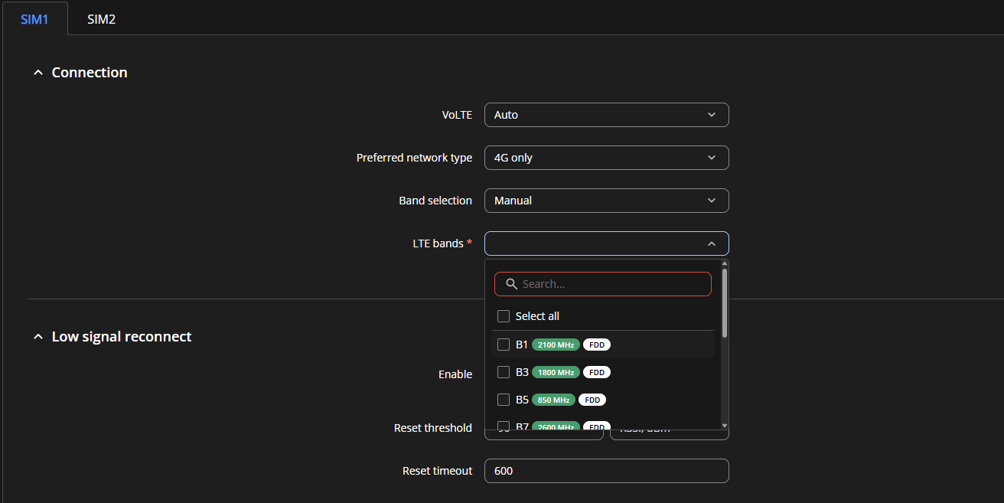
LegacyOS view:
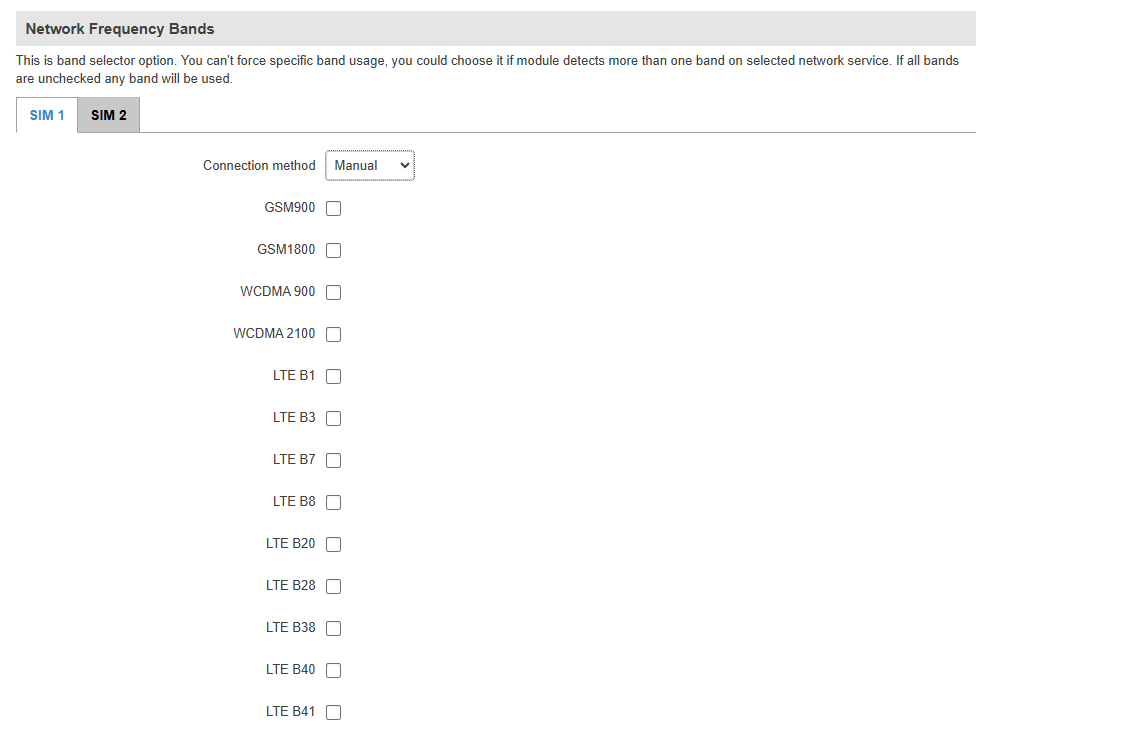
Official Wiki: Band Lock
7. Check carrier aggregation capability
Some LTE devices can use multiple carriers simultaneously, while others cannot.
This is one reason why two routers using the same SIM and standing next to each other can achieve very different speeds.
When troubleshooting, check whether the device supports carrier aggregation and whether the current network conditions allow it.
A higher-category modem can have substantially higher theoretical throughput than a lower-category modem, but theoretical maximum speeds should not be treated as expected real-world speeds.
8. Consider cell locking - but only after testing band locking
If multiple nearby cells are available, the router may connect to a cell that has excellent signal but is heavily loaded or offers fewer usable carriers.
Cell locking can be useful when another cell provides better throughput despite having slightly worse signal conditions.
In other words:
Better signal ≠ automatically better speed.
A less congested cell with slightly weaker RSRP may provide significantly better throughput.
Cell locking is more advanced and should normally be investigated only after testing automatic operation and band selection.
You can find a detailed example here: Locking Devices to a Mobile Cell
9. Check the mobile operator and SIM
If the radio conditions look good but the speed is still poor:
- Test another SIM from the same operator.
- Test the same SIM in another device.
- Test another operator at the same location.
- Check whether the SIM tariff has a speed limitation or fair-use policy.
- Check whether the operator uses different APNs or service profiles.
The APN should correspond to the service provided by the mobile operator.
Depending on the RutOS version and WebUI, mobile APN configuration may be available under:
Network → WAN → mobile interface (edit)

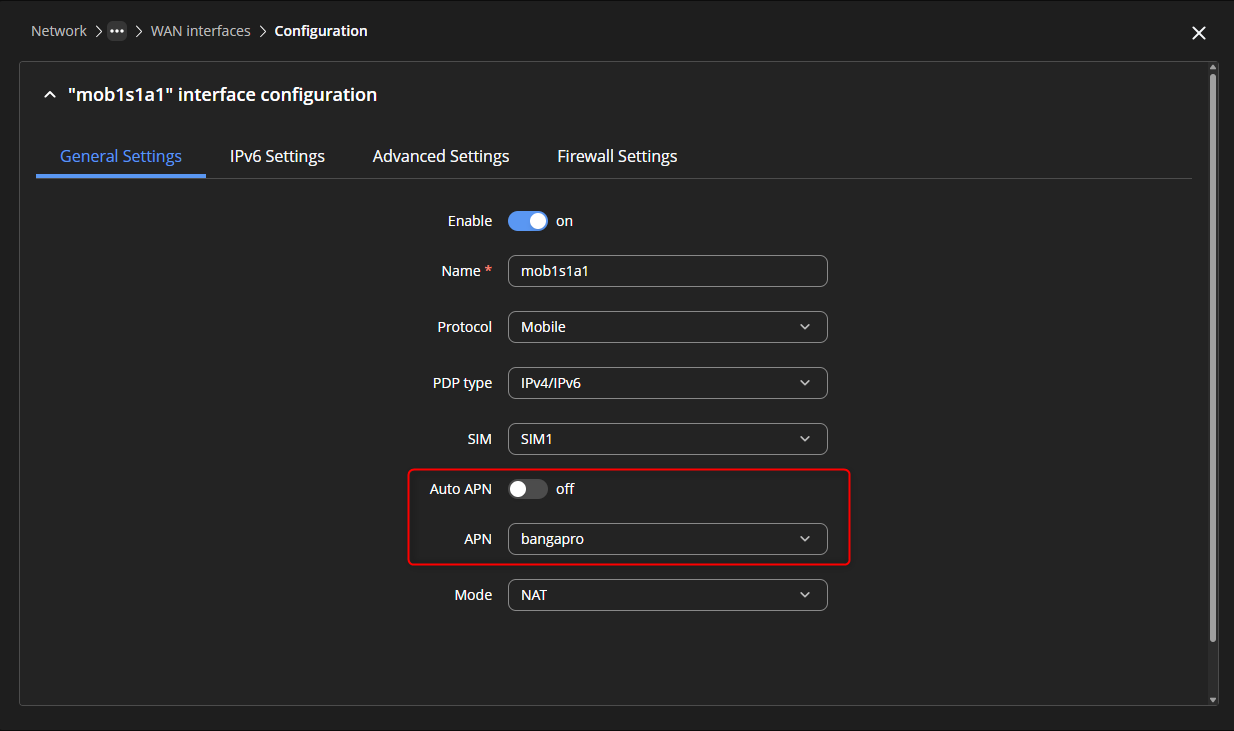
or on some older WebUI versions:
Network → Mobile
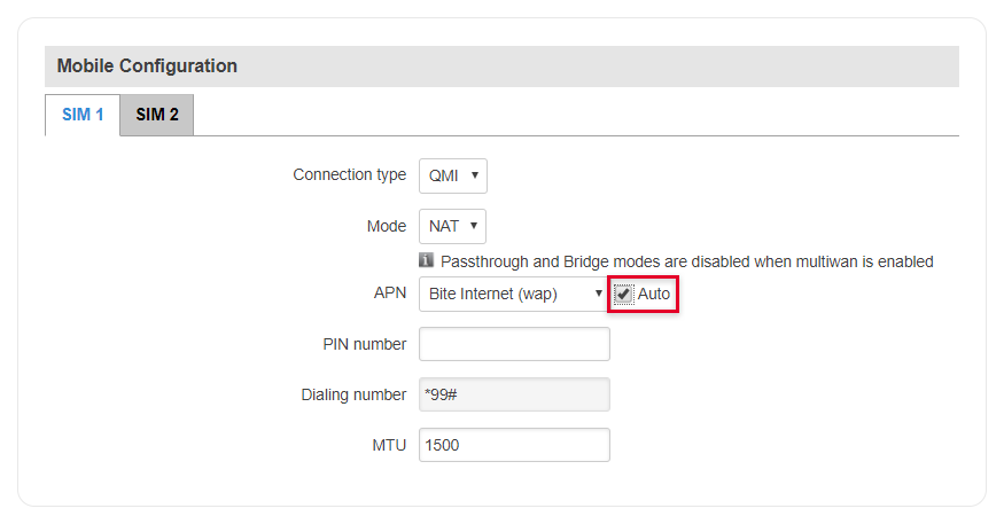
Do not change the APN randomly as a “speed optimization”. Use the APN provided by the operator.
Official Wiki: Auto APN
Additional reference: RUTX11 Mobile
10. Test 4G and 5G separately when troubleshooting
On devices that support both technologies, comparing different network modes can help identify where the limitation is.
Depending on the device, available options may include:
- 5G/4G automatic
- 5G only
- 4G only
- 5G NSA
- 5G SA
The available settings depend on the device and modem.
A useful test is:
Automatic → 4G only → 5G/4G automatic
Run the same speed test and record the radio parameters for each configuration.
Do not assume that 5G will always be faster. A congested or weak 5G connection can perform worse than a good LTE connection.
11. Check the time of day
Mobile networks are shared infrastructure.
A tower can provide excellent signal conditions while still providing poor throughput because many users are connected to the same cell.
For example:
08:00 - 150 Mbps
18:00 - 20 Mbps
with similar RSRP/RSRQ/SINR values can indicate that the limiting factor is network capacity or congestion rather than the router itself.
If possible, compare:
- Morning
- Afternoon
- Evening
- Weekday
- Weekend
A strong difference between off-peak and peak hours is useful evidence when contacting the mobile operator.
12. Eliminate the local network as a bottleneck
Before blaming the cellular connection, make sure the traffic path from the client to the router is capable of handling the expected speed.
Check:
- Ethernet port speed.
- Ethernet cable.
- Wi-Fi connection speed if testing over Wi-Fi.
- VPNs.
- Traffic shaping/QoS.
- Firewall or other processing-heavy configuration.
- Number of active clients.
- Other users consuming the mobile connection.
For example, testing a 300 Mbps mobile connection through a 100 Mbps Ethernet link cannot produce more than the capacity of that Ethernet link.
For initial troubleshooting, the cleanest test is:
PC → Ethernet → Teltonika router → Mobile network
13. Check the router’s configuration and firmware
Verify that the router is running an appropriate current firmware release for its model.
Teltonika publishes stable and latest firmware releases through the official RutOS firmware downloads page.
However, firmware should not be treated as a universal “speed booster”. Update firmware primarily to ensure that the device is running a supported version and to eliminate known firmware-related issues.
When troubleshooting, record:
- Router model.
- Hardware revision.
- RutOS version.
- Modem model.
- Modem firmware, where available.
- SIM/operator.
- Current network technology.
- Current band.
- Signal values.
Firmware downloads: Firmware downloads
Recommended troubleshooting sequence
When dealing with slow mobile Internet, the following order is usually the most efficient:
1. Establish a baseline speed
↓
2. Test directly over Ethernet
↓
3. Check RSRP / RSRQ / SINR
↓
4. Move the router and/or adjust antennas
↓
5. Check network technology and current band
↓
6. Test different bands
↓
7. Check carrier aggregation / serving cell information
↓
8. Compare different times of day
↓
9. Compare another SIM/operator
↓
10. Investigate cell locking if required
↓
11. Investigate the LAN, VPN, QoS or other local bottlenecks
This approach helps determine whether the limitation is related to:
Radio conditions → Cell/band → Operator/network → Router/modem → Local network
What to include when asking for help?
If you are creating a forum topic about slow mobile speed, providing the following information makes troubleshooting much easier:
Device:
- Model:
- Hardware revision:
- RutOS version:
Mobile network:
- Operator:
- SIM:
- 4G / 5G:
- Current band:
- Serving cell, if available:
Signal:
- RSRP:
- RSRQ:
- SINR:
Speed tests:
- Download:
- Upload:
- Ping/latency:
- Test server:
- Time of test:
- Ethernet or Wi-Fi:
Comparison:
- Speed using another device/SIM:
- Speed at another location:
- Peak vs off-peak results:
Configuration:
- APN:
- Network mode:
- Band lock enabled/disabled:
- Cell lock enabled/disabled:
- VPN enabled/disabled:
The more of this information is available, the easier it is to determine whether the limitation is related to radio conditions, network congestion, device capabilities, configuration, or the customer’s local network.
All the best,
Community Forum Team