For various technical reasons (which I won’t go into unless you ask) I cannot use the automated certificate renewal provided by Let’s Encrypt. I have workarounds for getting updated certificates for *.example.com (obviously not my real domain name) and have automated scripts that either push or pull them to each type of device.
I have a script that copies them from my certificate repository to /etc/certificates on the RUTX11, and then does an /etc/init.d/uhttpd reload to have the RUTX11 web server use the updated certificates.
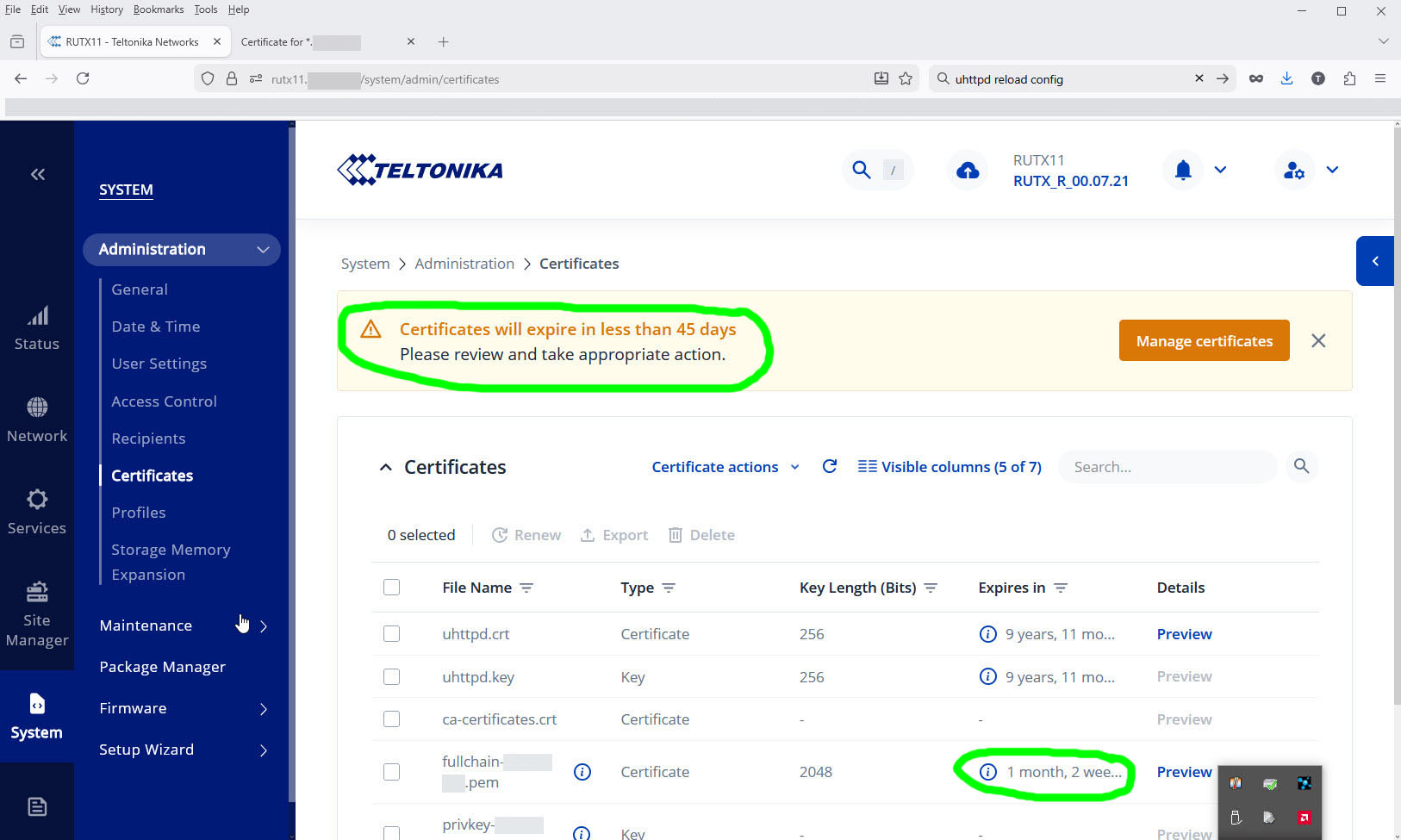
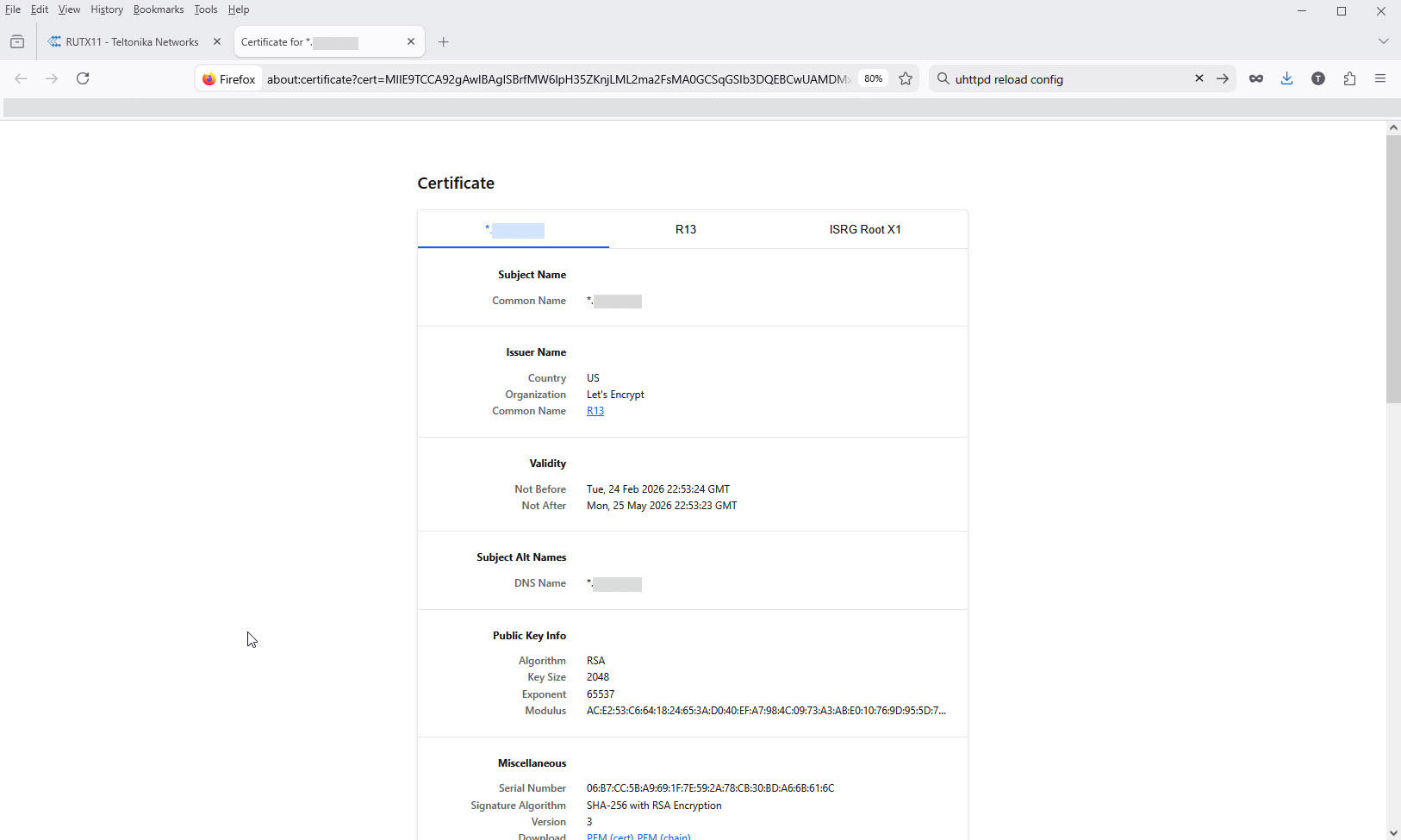
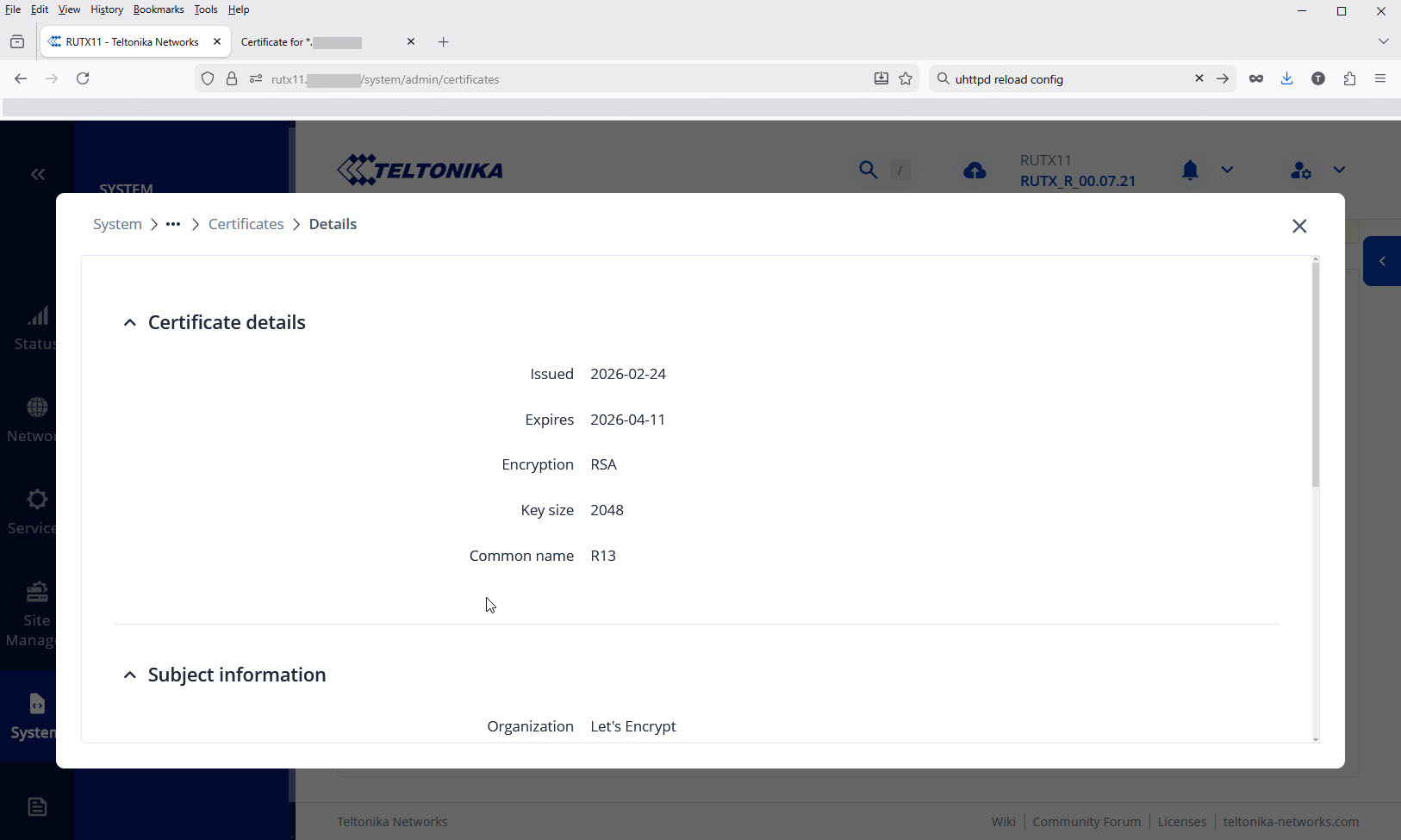
However, the RUTX11 Web UI is still reporting “Certificates will expire in less than 45 days” even after a reboot of the device, and the certificate information shown in the UI page is incorrect (it shows the new issue date, but not the new end date). Note that the certificate expiration as shown in my browser (second picture) shows the correct expiration of 25 May.
Is there some CLI routine I have to call to have RutOS either “notice” that the certificate has been replaced, or to actually install the replacement certificate? I found cert-install-vuci but it isn’t obvious if that is the correct file or what parameters it takes.
However, the correct certificate issue date and expiration is shown by the browser:
And the Web UI shows the correct issue date, but the wrong expiration date:
I could also just give up plans for using wildcard certificates on the RUTX11 devices, but the root directory of the web server is mounted read-only, so I can’t use a http-based ACME challenge as acme.sh can’t put the necessary file in the root directory of the web server:
root@RUTX11:~# cd /www
root@RUTX11:/www# ls
assets favicon.ico index.html.gz
brand fonts robots.txt
cgi-bin icons tlt_networks_logo.svg.gz
root@RUTX11:/www# touch foo
touch: foo: Read-only file system