Connecting to a guest Wi-Fi network with a login screen in the browser?
Hello Teltonika experts,
Is it possible to use the RUT200 and/or the RUT901 to connect to a Wi-Fi network that is protected by a login form in the browser?
Background: The Teltonika router is supposed to connect to an existing guest network, but to access the guest Wi-Fi, you first have to log in via the browser and accept the terms and conditions.
The Teltonika router is then supposed to convert the guest Wi-Fi into a LAN.
This Teltonika link will give you a rough idea but it’s a bit out-of-date. Before configuring anything, please upgrade to the latest firmware.
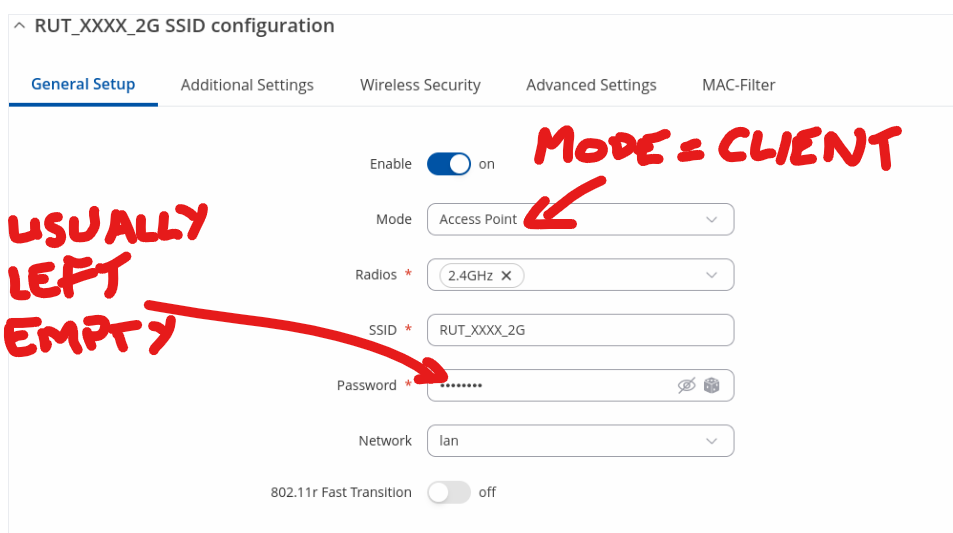
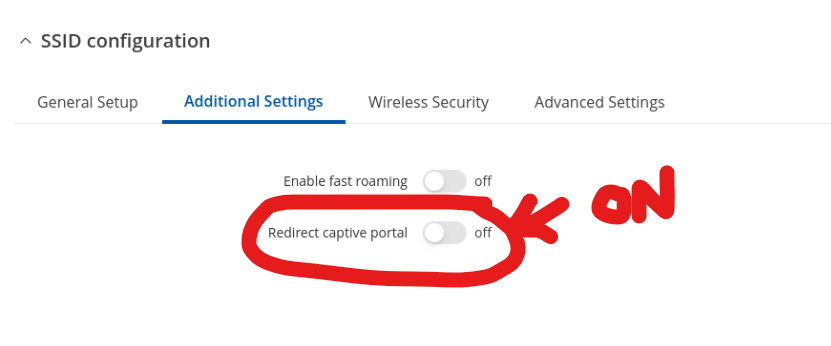
It sounds like your guest network is using a Captive Portal. You can configure a Wi-Fi uplink (Wi-Fi as WAN) using ‘Client’ mode. Note that when setting up your Client, the password is normally left empty when using a captive portal as any authentication happens later, via your browser.
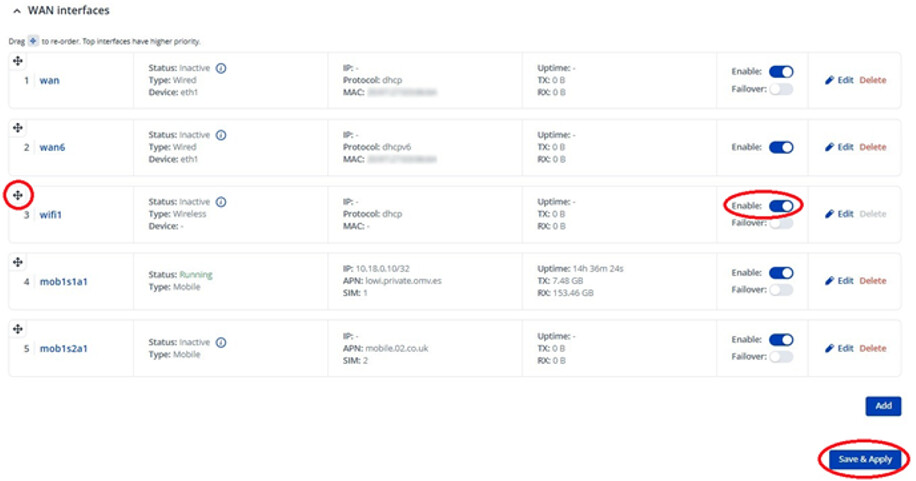
Once you have got your Client configured, then you will need to ensure that the WAN interface for the client (normally called ‘wifi1’) is enabled and is prioritised above your mobile WAN interfaces. Navigate to NETWORK > WAN and grab the ‘handle’ against the ‘wifi1’ interface. Drag the interface up, so it sits above the mobile interfaces. Ensure it’s ‘Enabled’ and click on ‘Save & Apply’.
Once you have configured the Client mode then, with your PC attached to the router via LAN or its SSID (NOT the Captive Portal SSID), you will need do a one-off authentication to the portal via your browser. This will then associate your router’s MAC address with the Captive Portal.
To assure yourself that the ‘wifi1’ interface is genuinely working, you can temporarily disable any mobile WAN interfaces that are running.
Thank you for the great input, @Mike. There isn’t much for me to add, except to suggest also taking a look at this configuration example on our wiki. At the bottom of the article, you’ll also find troubleshooting steps you can follow if you encounter any issues: Connecting to a Hotspot WiFi for Internet Connectivity - Teltonika Networks Wiki