I’m trying to connect to the CLI of a TRB140. Whatever I try, I get: “Error: authentication failed.”
What I’ve tried:
CLI in webinterface:
I’ve tried to open a CLI interface through the website by going to:
System -> Maintenance -> CLI
The connection times out, and I get no terminal.
CLI through RMS:
When I start a CLI session through RMS I am asked for a username and password.
I’ve tried:
Username root and admin.
Password printed on the sticker.
Password I use to sign into the web interface.
Password admin01.
All give the output: “Error: authentication failed.”
SSH through lan port
If I ssh to 192.168.2.1 I also get asked for a username and password. I’ve tried the same combinations as when connecting through RMS. This leads to the same authentication failure.
System settigns:
Firmware version: TRB1_R_00.07.21
Access Control
SSH [local access = True] [remote access = True]
CLI [local access = True] [remote access = True]
Is there a password I’m missing? Should it be the password in the sticker without capitalization?
The PassWord is the password i use to login to the routers webui which is case-sensitive.
If you modified the login password on setup it will be that modified password and not the password on the sticker.
I would also make a note of what the password is on the sticker and keep it safe somewhere just in case the sticker becomes damaged in future. If you have to do a factory reset in the future you’ll need the password on the sticker and if it’s unreadable / damaged then your stuffed!!!
Error: Authentication failed.
Connection is not active anymore.Connection Reset By Peer
In my opinion, this would suggest I’ve got the wrong password. The same password signs me into the web interface. (I use a password manager and copy and paste the password.)
It may be possible that if you have tried and failed toooooo many times in a shortish time, you’ll have to wait a fair amount of time before trying again. You may have locked yourself out temporarily. I think the limit is 10 consecutive failures and your buggered for 24hrs, even if you then get the correct UserName / PassWord combination correct, authentication will still fail!
To access the CLI, please log in using the username root and the same password you use for the WebUI.
Navigate to System → Administration → Access Control, disable both Local and Remote SSH access, then click Save & Apply. After that, enable them again and save the changes once more.
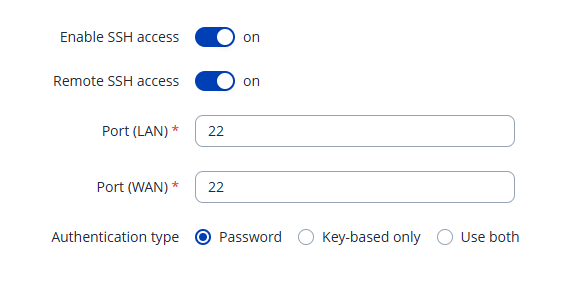
Also, please ensure that the Authentication type for SSH is set to Password (this is the default option).
When the limit is reached (when connecting through RMS), the error message would be like shown in the screenshot below.
However, after a device reboot, you would be able to log in again.
If the steps above do not resolve the issue, I recommend performing a factory reset. Please note that this will restore the device to its default configuration settings
Factory reset instructions can be found here:
Additionally, could you please confirm whether this issue started after a firmware upgrade, or if this is your first time attempting to access the CLI?
On default, my system was set up with Key-based only sign-in.
I changed it to password, and it immediately worked.
System → Administration → Access Control Press edit on the SSH service.
Select Password on the Authentication type section.
(See @Justinas post for a picture)