How can I use the ALL-CAN300 adapter together with the FMC650, please note that the RS232 communication input is via RJ45?
Hi,
Thank you for your inquiry about using the ALL-CAN300 adapter with the FMC650 (RS232 via RJ45).
Step-by-Step Guide:
1. Connection
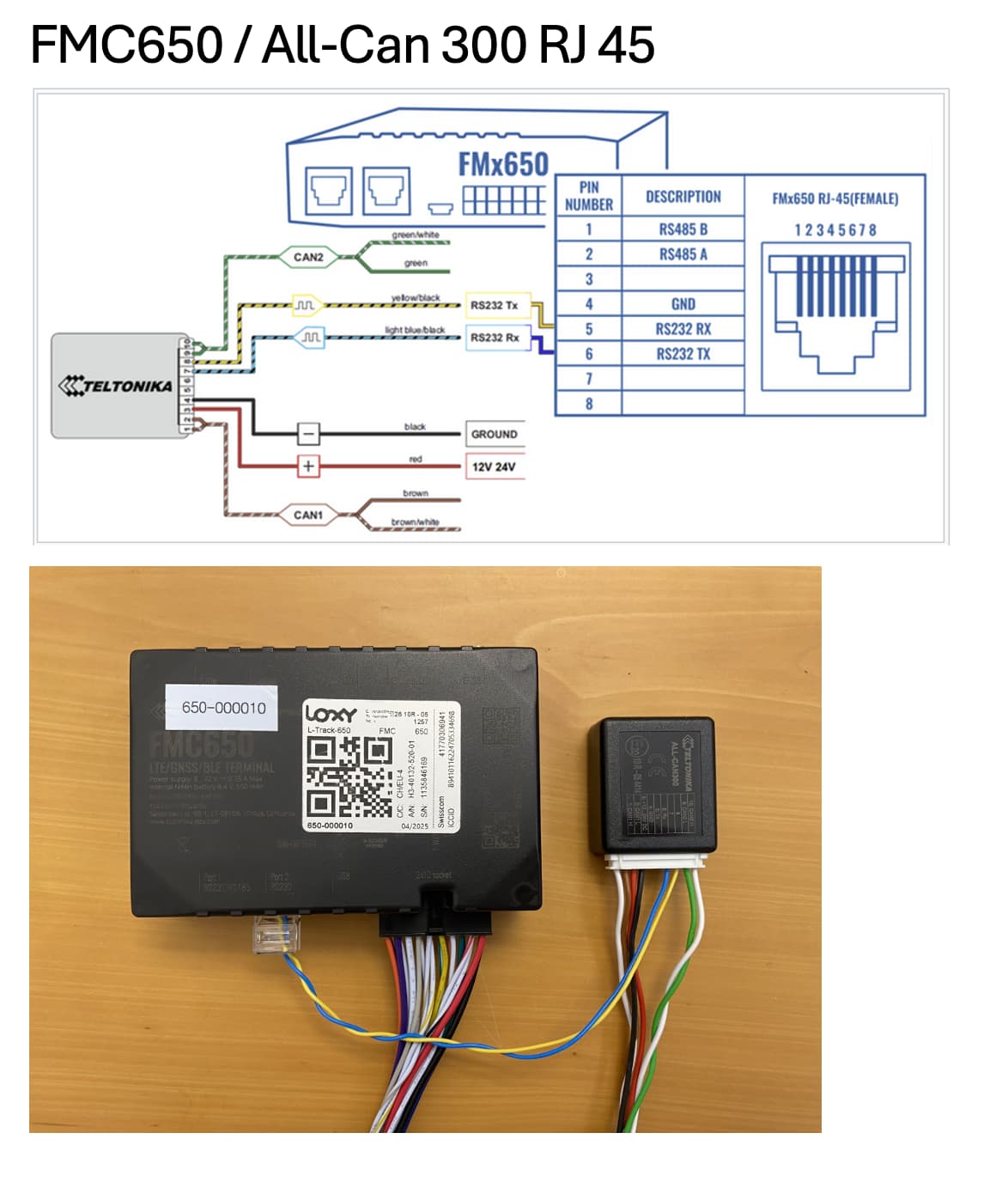
- RS232 TX (ALL-CAN300) → RJ45 Pin 6 (FMC650)
- RS232 RX (ALL-CAN300) → RJ45 Pin 5 (FMC650)
- GND → RJ45 Pin 4 (FMC650)
- CAN H & CAN L → Connect to vehicle’s CAN bus
- Power: +12V and GND from the vehicle to ALL-CAN300
2. Configure FMC650
-
Connect FMC650 via USB and open Teltonika Configurator
-
Go to RS232/RS485 → CAN Adapter section
-
Set RS232 Mode: LVCAN (COM1)
-
Set Baud rate to default (115200)
-
Go to LVCAN section:
- Select the appropriate program number based on vehicle
- Enable required I/O parameters
- Make sure the parameters turn green, indicating successful reading
-
Note: The program number must match the vehicle model. You can get the correct value by contacting your Teltonika Sales Manager or the VIP Helpdesk
-
Save and upload the configuration
Once completed, the FMC650 will begin receiving CAN data from the ALL-CAN300 via RS232 and transmit it to your server.
Reference:
https://wiki.teltonika-gps.com/view/FMC650_CAN_adapters
Best regards,
Amalnath
1 Like
Hello Amalnath, this step-by-step guide has already been followed, but without success. The CAN adapter does not indicate an established connection.
Dear Felipe,
Thank you for your feedback.
As the CAN adapter connection is still not established, we’d like to verify a few additional details to help identify the issue more accurately.
Please provide the following information:
- ALL-CAN300 Adapter Details
- Product code
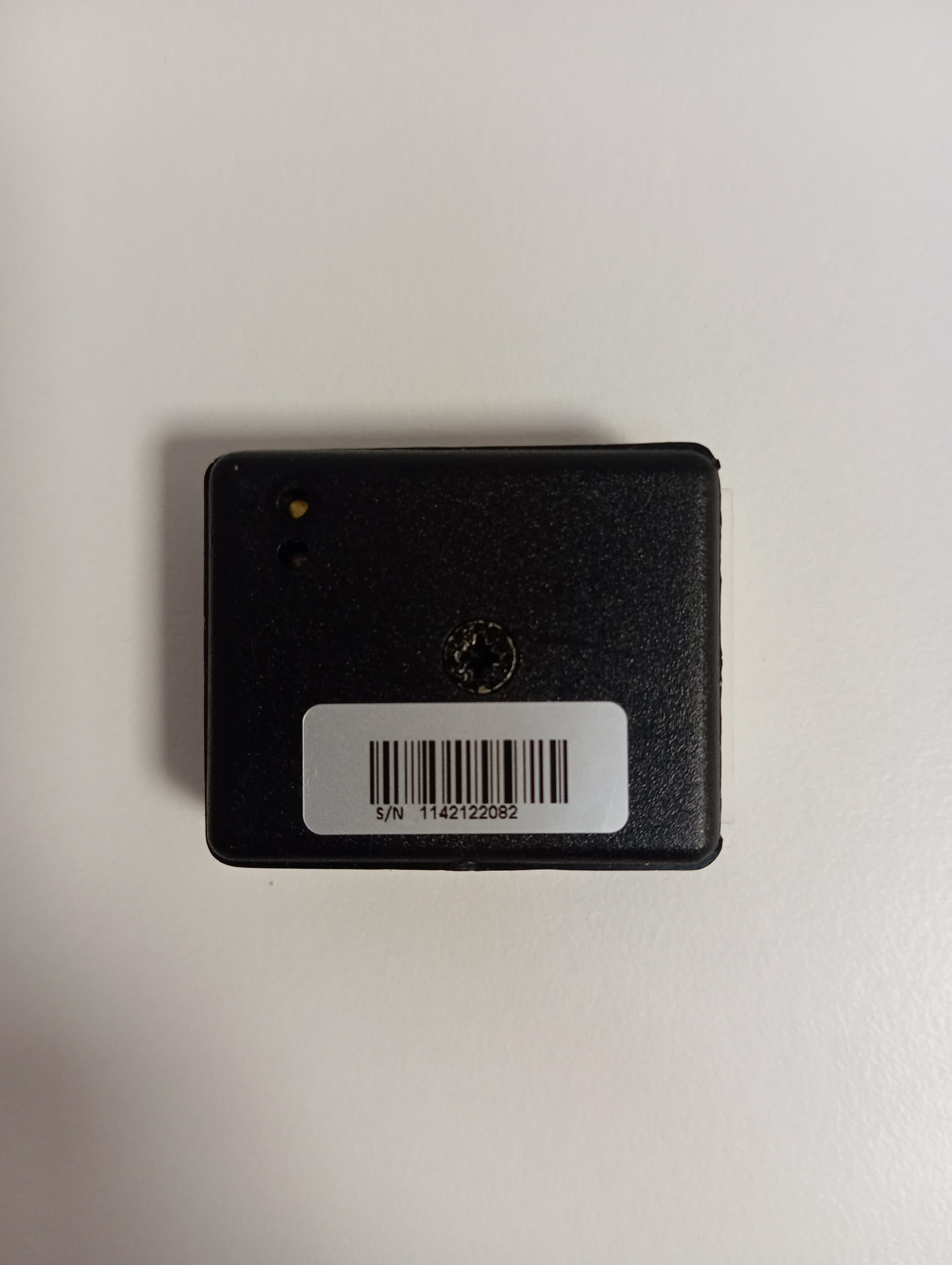
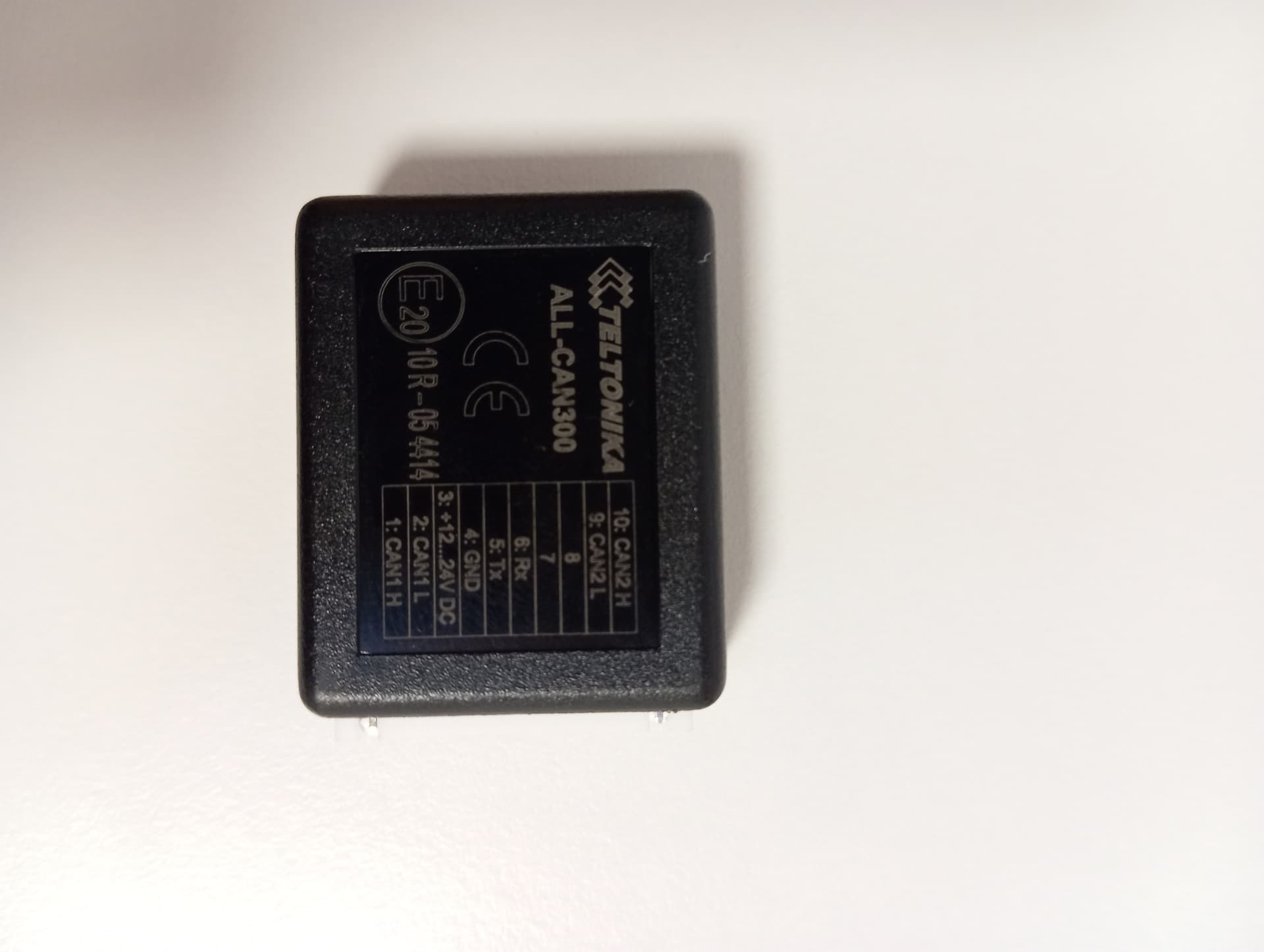
- A clear photo of the CAN adapter, including any labels/stickers
- Approximate purchase date or version (older versions may not be compatible with FMC650)
- Wiring Confirmation
- A clear picture of your actual wiring between ALL-CAN300 and FMC650 (especially RJ45 connection and CAN lines)
- FMC650 Firmware Version
- Connect the FMC650 to Teltonika Configurator
- Under the Status tab, please share the firmware version (e.g.,
03.27.07.Rev.01) - If you’re not on the latest firmware, an update may be required for CAN adapter compatibility
- LVCAN Module Detection
- In the Configurator → LVCAN section, check if a Module ID appears
- Also confirm if any I/O parameters turn green, which indicates successful CAN data reading
- If no Module ID or green I/O is visible, this usually means the CAN adapter is either not communicating or the program number is incorrect
Looking forward to your reply.
Best regards,
Amalnath
Hello Amalnath,
Our ALL-CAN300s were purchased in December 2020. I’m attaching the requested images.
Best regards,
Dear Felipe,
Thank you for the update and for sharing the images.
Based on our analysis, it appears that the ALL-CAN300 units you’re using are older hardware versions (from 2020), which are not compatible with the FMC650.
As this is a hardware-level limitation, custom wiring modifications will not enable compatibility.
Recommended Next Step:
To use the ALL-CAN300 with the FMC650, a newer hardware version of the adapter is required.
We recommend contacting your Teltonika Sales Manager or VIP Helpdesk to confirm the correct adapter version and availability.
Please feel free to reach out if you need further assistance once the updated adapter is available.
Best regards,
Amalnath
This topic was automatically closed 2 days after the last reply. New replies are no longer allowed.