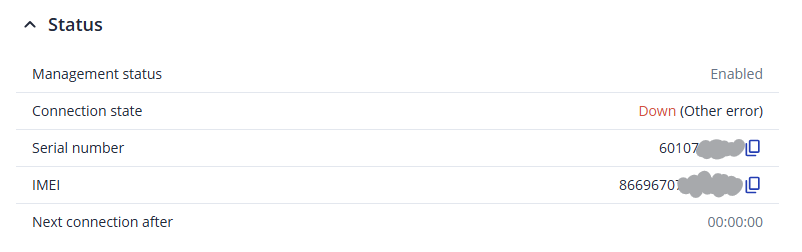
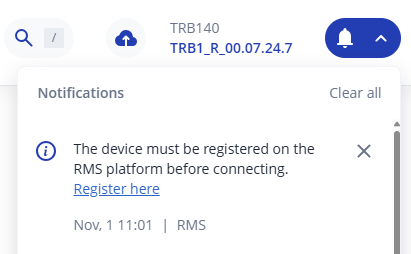
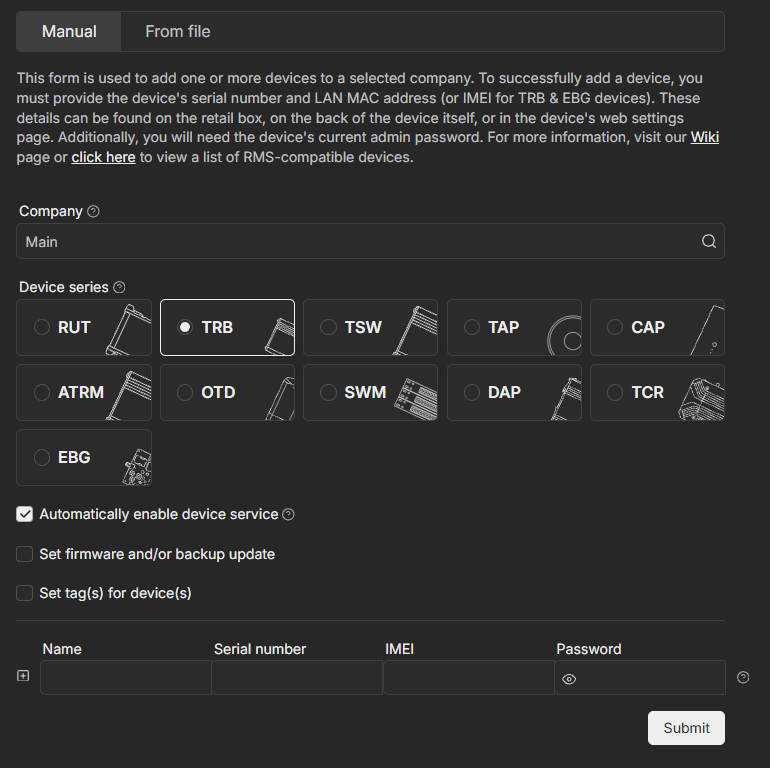
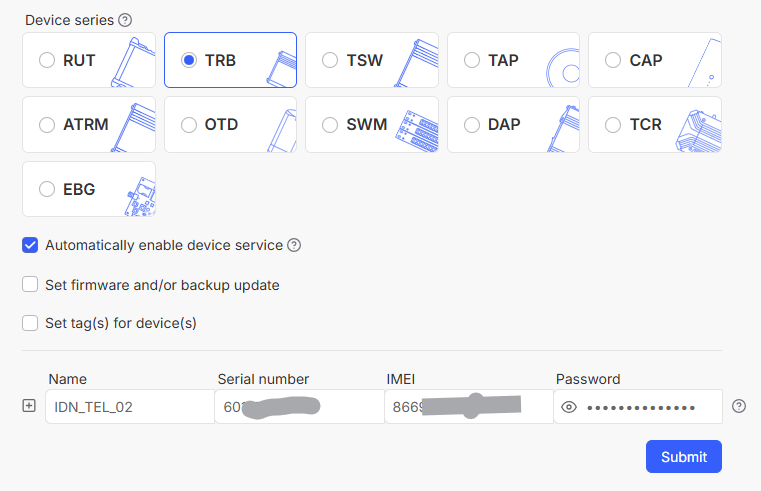
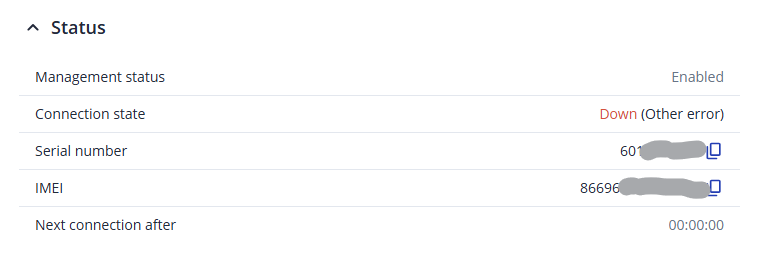
One of my TBR140 was online in RMS for a few weeks and then went offline and I have not been able to get it back online despite trying to unregister-register. I have it on my workbench now so I have access to WebUI.
Could you please unregister the device from RMS and register it again using the serial number and IMEI provided in your first screenshot?
Once the device is registered again, could you please check whether the connection state still shows Down (Other error) or if a different status is displayed?
For more information about why a device may appear offline or not activated on RMS, please refer to the following wiki link:
Please let us know whether re-registering the device using its serial number and IMEI resolves the issue. If the problem persists, we’ll be happy to investigate it further.
Could you please clarify how the device is accessing the internet? Is it using a SIM card? If so, could you also let us know which type of IP address it is receiving from the mobile network – IPv4 or IPv6?
Please note that RMS does not currently support IPv6 addresses assigned by the ISP. If the devices are receiving IPv6 addresses, we recommend changing the mobile interface configuration to use IPv4 only.
To check the assigned IP address, navigate to Status → Network → Mobile in the device’s WebUI. Under the Connection section, you should be able to see the IP address assigned by your mobile operator.
If the address looks similar to 2001:db8::1, it is an IPv6 address.
To configure the device to use IPv4 only:
Navigate to Network → WAN.
Find the mobile interface and click Edit.
Under General Settings, locate the PDP Type option.
Change it from IPv4/IPv6 (default) to IPv4.
After applying the changes, please check whether the device connects to RMS successfully.
Could you also let us know which type of IP address the devices were receiving initially and whether changing the PDP type resolves the issue?