Hi,
I’m having an issue with several units (TRB141 and TRB256). I’ve already tried activating and reconnecting the devices using SMS messages, and I also tried unregistering and re-adding one device. Credits are available.
I tested this with one device on my desk, and the only way to get it working after a reboot was to open the web admin interface and reconnect it from the RMS page. Unfortunately, I can’t do this with remote devices.
One additional observation: it seems that after I added a custom script (a script that resets the digital I/O after a few seconds), RMS reconnection no longer works after a reboot.
I have tested the SMS commands in the following order: rms_off, waited about 30 seconds, then rms_on, and finally rms_connect. All of these commands returned the response “Command executed successfully.”
However, when I send the command rms_status, the response is “Error encountered while executing command.”
Script:
# Reset relays TRB256

#!/bin/ash
delay=5
while true; do
if [ “$(ubus call ioman.gpio.dio0 status | jsonfilter -e ‘@.value’)” = “1” ]; then
sleep $delay
ubus call ioman.gpio.dio0 update ‘{“value”:“0”}’
else
sleep 1
fi
done
Script was added as a workaround for an event juggler issue. I have an event juggler configuration where the control output is automatically reset after 3 seconds.
The implementation is based on a relay used for the control output, and the relay state is also wired to a digital input channel for feedback.
A few times, the device has ended up in a situation where the rising edge seems to be missed (this is my assumption), and as a result the control output remains active. The script was added to ensure the output is reset even in this case.
For testing purposes, could you please disable or remove the custom script from the device and check whether the RMS connection issues persist after a reboot? This will help confirm if the script may be causing the RMS connection problem and help us investigate further.
I wasn’t able to replicate the issue on one of my devices
I have one unit (TRB141) on my desk that I can use for testing (the other units are over 300 km away).
When the script is present, the RMS connection does not establish automatically after a reboot. The connection state remains “Connecting”, and the only way to restore the connection is to manually press the Reconnect button in the web interface. This is not possible with the remote units.
When I remove the script, the RMS connection is established automatically after reboot as expected.
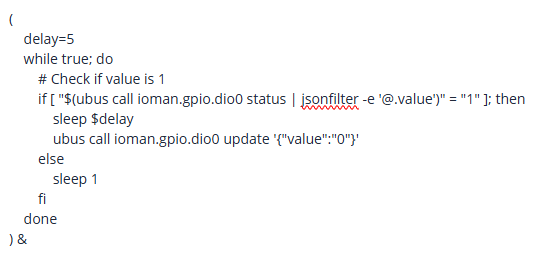
Could you please try wrapping the script in parentheses and adding an & sign at the end? This will force the process to run in the background, allowing the system to finish starting up and connect to RMS.
It should look like this:
It seems the current script causes the device’s boot sequence to hang. Adding the & sign starts the process in the background, which should resolve the issue.
Thanks for the suggestion — adding parentheses and the & at the end of the script seems to have resolved the issue on my test device. RMS now reconnects automatically after reboot.
Is there any way to apply this fix to the remote devices that are already deployed? Unfortunately, those units are located far away and I don’t have USB or local web access to them.
For example, is it possible to:
modify or replace the script remotely via RMS, or
apply the change using SMS commands or another remote method?
Any guidance on how to recover these devices remotely would be greatly appreciated.
If the device becomes reachable through RMS after sending the SMS commands, you should be able to access the device’s WebUI or SSH via RMS and edit the script you provided earlier.
However, if the device remains unreachable even after executing the SMS commands, you may try the following steps:
Send the command <admin password> restore to reset the device to factory default settings.
Remove the device from RMS and add it again.
If the device does not connect to RMS automatically, send an additional SMS command: <admin password> rms connect to force the connection.
Once the device is reachable, access its WebUI or SSH and edit the script as needed.
Please keep in mind that this process restores the device to its factory default configuration, meaning all existing settings will be lost.
If you have any additional questions or need further assistance, feel free to let me know.